

Sales reps send follow-up emails that never get opened. Meanwhile, 98% of SMS messages are opened vs roughly 20% for email, which is why teams running HubSpot SMS workflow automation consistently outperform teams that don’t. If your sales process still relies on email alone, you’re leaving responses, booked meetings, and closed deals on the table.
Message IQ is built by Integrate IQ, a HubSpot Diamond Solutions Partner. It gives sales teams two-way SMS automation that runs entirely inside HubSpot’s native workflow engine. No third-party triggers. No Zapier hacks. The workflow you already know, extended to text messaging.
This guide breaks down exactly how HubSpot SMS workflow automation works for sales teams, what workflows to build first, how to stay TCPA-compliant, and which SMS templates convert best at each stage of the pipeline.
What Is HubSpot SMS Workflow Automation?
HubSpot SMS workflow automation is the process of triggering and sending text messages to contacts automatically, based on CRM data and contact behavior, using HubSpot’s native workflow builder. Instead of a rep manually texting each lead, the workflow fires an SMS the moment a specific condition is met: a form fill, a deal stage change, a meeting no-show, or a property update.
With a tool like Message IQ connected to your HubSpot, every SMS action runs as a native workflow step, meaning you get full enrollment logic, branch conditions, and delay steps and every conversation stays two-way by default.
HubSpot SMS Workflow Automation: Quick Answers
| Question | Short answer |
|---|---|
| How do I set up automated SMS workflows inside HubSpot? | Install an SMS app with a native workflow action (or buy HubSpot’s Marketing SMS Add-On), register your number, create a workflow, set an enrollment trigger, add the Send SMS action, then add a delay and a reply branch before you turn it on. |
| Does HubSpot integrate SMS with marketing workflows? | Yes. With the native add-on, you publish an SMS message for automation and select it in a Marketing Hub workflow. Apps like Message IQ add a Send SMS action to contact, deal, ticket, and company workflows. |
| Can HubSpot send automated SMS campaigns? | Yes, from any enrollment trigger, as long as contacts have opted in to SMS. |
| Can the automation stop when a contact replies? | Yes. Add the contact’s SMS reply property to the workflow’s unenrollment criteria, and anyone who replies exits every pending step. |
| Can a workflow text a new lead automatically? | Yes. Trigger on a form submission or “Lifecycle stage is Lead,” then add the Send SMS action as the first step. |
| Can a workflow handle SMS opt-in without manual work? | Yes. A workflow can set a contact’s SMS subscription status and legal basis when they check an opt-in box on a form. |
| Do HubSpot workflows send automatic follow-up emails after a form submission? | Yes. Use the form submission trigger with a Send email action, and add an SMS step in the same workflow if you want both channels. |
| Does HubSpot offer automated deal pipeline workflows? | Yes. Deal-based workflows come with Sales Hub Professional and above, and they can move deal stages, create tasks, and send texts through a connected SMS app. |
| Which SMS API integrates natively with HubSpot workflows? | Raw SMS APIs don’t. Native integration comes from marketplace apps that register a Send SMS workflow action. An API alone needs webhooks and custom code. |
| What kind of tool runs shared team workflows for SMS outreach? | Two-way business texting platforms with a shared inbox, connected to your CRM so automated sends and rep replies live on the same record. |
Why HubSpot’s Native SMS Doesn’t Work for Sales Teams
HubSpot does include a native SMS tool, called the Marketing SMS Add-On (HubSpot also sells a separate Transactional SMS Add-On for transactional messages) . It costs $75 per month for 1,000 message segments and requires Marketing Hub Professional (starting around $800 per month) or Enterprise. That’s where most sales teams hit a wall.
The native add-on only sends to marketing contacts who specifically opted into marketing communications. It lives inside Marketing Hub workflows, not Sales Hub. A rep can’t add an SMS step to a Sequence, trigger a text the way reps actually work off deal stage changes in Sales Hub, or text a brand-new lead who just filled out a form and hasn’t been classified as a marketing contact yet. Both inbound and outbound messages count against the 1,000-segment cap, so a team running even a modest speed-to-lead workflow can burn through the monthly allotment in days.
This is why sales teams add a tool like Message IQ instead of relying on the native add-on. Message IQ’s Send SMS action drops into any HubSpot workflow, including ones built for Sales Hub use cases, works on any contact regardless of marketing contact status (with proper consent), and isn’t metered by segment the way the native tool is.
If your team is only sending occasional marketing promotions to an already opted-in list, the native add-on may be enough. If your reps need to text leads the moment they convert, or branch on deal stage changes, you need a workflow action built for sales, not marketing.
Why Sales Teams Need HubSpot SMS Workflow Automation in 2026
Speed-to-Lead Is the Single Biggest Variable in B2B Sales
Responding to an inbound lead within five minutes makes you 21 times more likely to qualify that lead than responding after 30 minutes. Most sales teams don’t respond within five minutes because a human has to see the notification, open the CRM, and send a message. That chain fails constantly.
HubSpot SMS workflow automation removes the human bottleneck from the first touch. The moment a lead submits a demo request, the workflow fires a personalized SMS within seconds. The rep gets the reply in their shared inbox. The lead feels like someone is actually paying attention.
Email Follow-Up Is Broken at the Top of the Funnel
Cold and warm follow-up emails have an average open rate around 20%. Automated SMS follow-up gets opened at 98%. For sales teams working high-volume lead flows, that gap in visibility translates directly into pipeline. More opens means more replies, more replies means more conversations, and more conversations means more booked calls.
That’s not a hypothesis. It’s what sales teams using SMS automation inside HubSpot consistently report: the text follow-up converts at two to four times the rate of an equivalent email in the same sequence.
Two-Way Conversations Beat Broadcast Blasts
A lot of SMS tools send one-way messages. The contact gets a text, but when they reply, either nothing happens or the reply goes into a black hole. That’s broadcast, not sales communication.
Message IQ makes every SMS conversation two-way by default. When a lead replies to your automated text, that reply lands in a shared team inbox where any sales rep can pick it up. You can route replies to the contact owner automatically. You get real conversations happening at scale, not just texts being fired into a void.
Message IQ – Sending Automated SMS from HubSpot
How HubSpot SMS Workflow Automation Works: The Technical Setup
Step 1: Connect Message IQ to HubSpot
Message IQ installs directly from the HubSpot App Marketplace. Once connected, it adds a native SMS action to your workflow builder. You’ll find it under “Send SMS” in the action menu, exactly where you’d add an email action or a task. No code, no separate dashboard, no switching between tools.
If you haven’t done this yet, the HubSpot SMS integration setup guide walks through the full process.
What HubSpot Tier Do You Need to Use a Custom Workflow Action?
Custom workflow actions, the mechanism that lets a connected app like Message IQ add a “Send SMS” step, require Professional tier or higher on whichever Hub you’re building the workflow in. That’s separate from, and usually cheaper than, the Marketing Hub Professional/Enterprise tier HubSpot’s native SMS add-on requires.
- Sales Hub Professional+: unlocks workflows and custom actions for deal- and contact-based sales automation
- Service Hub Professional+: unlocks ticket-based workflows with custom actions
- Marketing Hub Professional+: unlocks contact-based marketing workflows with custom actions
You only need Professional on the Hub you’re actually automating in, not all three. A sales team building deal-stage SMS workflows doesn’t need Marketing Hub at all.
SMS API vs. Native Workflow Action: Which Do You Need?
An SMS API (Twilio, SMSAPI, and similar providers) gives developers an endpoint to send texts. It doesn’t appear in HubSpot’s workflow builder on its own. To use one, a developer posts workflow data to the API through a webhook or custom code action, then builds a second integration that writes replies, delivery status, and STOP requests back to the contact record.
A native workflow action skips all of that. The app registers “Send SMS” as an action, so admins build and edit texting logic the same way they edit an email step, and replies log to the timeline without extra code. Choose an API when you have engineers and a routing requirement no app covers. Choose a native action when you want RevOps, not developers, to own SMS automation.
Step 2: Register Your Number with 10DLC
Before your workflows send a single message, your phone number needs to be registered under A2P 10DLC rules. 10DLC (10-Digit Long Code) is the carrier framework that governs business-to-person SMS in the US. Unregistered numbers get filtered aggressively by carriers, meaning your messages don’t deliver.
Message IQ handles 10DLC brand and campaign registration as part of onboarding. You pick a local number (registered under 10DLC) or a toll-free number (which goes through a separate toll-free verification), register your business use case, and carrier filtering drops significantly. Registration typically takes 6 to 8 business days for a long code number and 8 to 12 weeks for a short code, so register before you need to send, not after. For deeper context on the registration process, read the A2P 10DLC brand registration guide.
Step 3: Build Your Enrollment Trigger
Every HubSpot workflow starts with an enrollment trigger. For sales SMS automation, common triggers include:
- Contact submits a demo request or contact form
- Deal is created and deal stage is set to “New Lead”
- Contact property “SMS Opt-In” is set to “True”
- Meeting is booked but contact has not confirmed
- Deal stage moves to “Proposal Sent” and no reply in 48 hours
- Contact is marked as a re-engagement target (last activity over 60 days)
Pick a trigger that represents a meaningful buying signal. Don’t trigger SMS on every form submission your site has. Start with high-intent actions where a fast response changes the outcome.
Triggering Transactional SMS From Contact Activity
Transactional texts confirm something the contact just did, so the enrollment trigger is the activity itself. Common activity-based triggers:
- Meeting booked through a HubSpot meetings link: send a confirmation with the time and join link
- Deal moved to Closed Won: send an onboarding kickoff text from the account owner
- Ticket status changed: send a status update the moment support moves the ticket
- Form submitted for a quote or appointment request: send a receipt with next steps
- Payment or renewal property updated: send a confirmation or reminder
Keep transactional texts free of promotional content, and still confirm the contact agreed to receive texts. On HubSpot’s native SMS, transactional messages require the separate Transactional SMS Add-On. With Message IQ, you build them as ordinary workflow actions on contacts, deals, tickets, or companies
Enrolling from an Active List Instead of a Live Trigger
Property-based triggers only catch contacts as they cross a condition going forward. If you want to text everyone who already matches a filter right now, build an Active List first, then set that list as the workflow’s enrollment trigger.
- Use case: launch a one-time SMS push to every deal currently stuck in “Proposal Sent” for 30+ days, not just future deals that get stuck
- Active Lists re-evaluate automatically, so contacts entering or leaving the filter enroll or exit the workflow as HubSpot data updates
- Static Lists don’t re-evaluate; use them only for a genuine one-time send to a fixed set of contacts
List-based enrollment is the right call for a backlog cleanup or a one-off campaign. Property-based triggers are the right call for an ongoing process like speed-to-lead.
Step 4: Add SMS Actions and Branch Logic
Inside the workflow, add a Message IQ Send SMS action. Write your message in the action editor. You can pull in any HubSpot contact property as a merge tag: {{contact.firstname}}, {{contact.company}}, {{owner.firstname}}, and more.
After the SMS action, add a delay and a branch. Branch on whether the contact replied:
- If replied: Enroll in a follow-up task for the contact owner, or send a booking link
- If no reply after 24 hours: Send a second SMS with a different angle or a direct calendar link
This simple two-step branch doubles the reply rate compared to a single text and wait. To stop the automation entirely once someone answers, add the SMS reply property to the workflow’s unenrollment criteria, so a contact who replies exits every pending text at once.
Step 5: Assign Replies to the Right Rep
Message IQ routes incoming replies to the HubSpot contact owner automatically. If a lead replies to an automated SMS at 9pm, the assigned rep sees it first thing in the morning inside the shared inbox (since Message IQ 3.0, that’s HubSpot’s own help desk, standard shared inbox, or any custom inbox your team uses). No reply falls through the cracks, and no rep has to manually check a separate SMS platform.
Sending Internal SMS Alerts to Reps From a Workflow
Sometimes the text that matters goes to your rep, not the lead: a hot demo request, a reply on a stalled deal, a VIP account visiting the pricing page. You have two options inside HubSpot.
- HubSpot’s internal SMS action. Where your portal offers it, this action texts a specific user or phone number that you pick. It can’t send to the record owner dynamically, so teams with several reps end up building an if/then branch per owner.
- An SMS app’s workflow action. Point the Send SMS action at the owner’s phone number using a user or owner property, so one action covers every rep. Message IQ logs the alert like any other send.
Avoid the old email-to-text gateway trick (sending an internal email to a carrier address). Carriers have been retiring those gateways, and messages fail silently when they do. Pair every internal SMS with a HubSpot task so the alert also leaves a trail in the CRM.
Workflow Templates vs. Manual Follow-Up After a Form Submission
Use a templated workflow for any follow-up that happens more than a few times a week. Manual follow-up only wins for a handful of high-value leads where a rep needs to write every word. For appointment scheduling and SMS follow-up after a form submission, the volume, timing, and consistency all favor automation.
| Factor | Templated HubSpot workflow | Manual follow-up |
|---|---|---|
| Response time | Seconds after the form submits | Whenever a rep sees the notification |
| Consistency | Same timing, consent checks, and copy every time | Varies by rep and by day |
| Scheduling | Booking link in the first text; reminders fire on their own | Back-and-forth to find a time |
| Compliance | Enrollment filters enforce opt-in and quiet hours | Depends on each rep remembering |
| Personalization | Tokens plus rep takeover on reply | Fully custom, but slow |
| Best for | Inbound demo, quote, and appointment requests at any volume | A few strategic accounts a month |
One warning about “follow-up blasts.” Sending the same text to everyone who filled out a form last week is a blast, and it performs like one. A triggered workflow sends one message to one person at the moment they asked for it, which is why it books more meetings. Here’s the template to start from:
- Enrollment trigger: Contact submits the demo or appointment request form AND SMS consent checkbox is checked
- Action: Send SMS: “Hi {{first_name}}, thanks for your request! Grab a time that works here: {{meeting_link}}. Reply with any questions. {{rep_name}}” (129 chars)
- Delay: Wait 30 minutes
- Branch logic: If a meeting is booked, end and let the meeting reminder workflow take over | If no meeting and no reply, send a second SMS after 24 hours
- Follow-up action: “{{first_name}}, still happy to find a time. Want me to suggest two slots instead? {{rep_name}}” (94 chars)
- Unenrollment: Contact replies OR meeting is booked
Pair this with the meeting reminder workflow below so booked contacts get reminders automatically. For more reminder copy, see our appointment reminder SMS templates.
Qualifying Leads and Booking Meetings With SMS Workflows
An SMS workflow qualifies a lead by asking one question, branching on the answer, and updating HubSpot so the right rep gets the conversation. Here’s a simple two-question qualifier:
- Enrollment trigger: Lifecycle stage becomes Lead AND SMS consent is true
- Action: Send SMS: “Hi {{first_name}}, quick question so we send the right info: how many people on your team would use this? Reply with a number.” (126 chars)
- Branch logic: If the reply meets your threshold, set Lead status to “Sales qualified,” update lifecycle stage, and send a booking link | If below threshold, enroll in a nurture workflow | If no reply in 24 hours, create a task for the owner
- Action: Assign the contact owner by territory or round robin so the rep sees the thread in their inbox
AI texting tools can run this qualification conversation in plain language instead of fixed branches. If you evaluate one for HubSpot, check five things: it writes answers to HubSpot properties, it updates lifecycle stage and lead status, it hands the thread to a human on request or at a clear trigger, it honors STOP and quiet hours, and it logs the full transcript to the contact timeline. A tool that qualifies leads but leaves the data outside HubSpot just moves the bottleneck.
6 HubSpot SMS Workflow Automation Sequences Every Sales Team Should Build
1. Speed-to-Lead SMS Workflow
Use case: New inbound lead submits a demo request, quote form, or contact form.
Workflow:
- Enrollment trigger: Contact submits demo request form
- Action: Message IQ sends SMS immediately
- Delay: Wait 10 minutes
- Branch logic: If contact replied, create task for sales rep to continue conversation | If no reply, send follow-up SMS after 24 hours
SMS Template:
Use case: Inbound lead first touch
“Hi {{first_name}}, thanks for reaching out to {{company}}. I’d love to show you what we can do in a quick 15-minute call. Any time this week work for you? Reply here and I’ll send a link. — {{rep_name}}” (196 chars)
This workflow fires within seconds of a form submission. By the time the rep finishes their current call, there’s already a reply waiting.
2. Deal Stage Progression SMS Workflow
Use case: Move a stuck deal forward when it’s been sitting in the same stage for more than 3 days.
Workflow:
- Enrollment trigger: Deal stage is “Demo Scheduled” AND deal last activity date is more than 3 days ago
- Action: Message IQ sends check-in SMS to contact
- Delay: Wait 48 hours
- Branch logic: If contact replies, notify deal owner with task | If no reply, unenroll and flag deal for manual follow-up
SMS Template:
Use case: Stuck deal nudge
“Hi {{first_name}}, just checking in on our conversation from last week. Happy to answer any questions or adjust the scope before we move forward. — {{rep_name}}” (160 chars)
3. Post-Demo Follow-Up SMS Workflow
Use case: Contact attended a demo but hasn’t responded to the follow-up email in 48 hours.
Workflow:
- Enrollment trigger: Meeting outcome is “Completed” AND contact property “Follow-Up Email Sent” is true AND no reply in 48 hours
- Delay: 48 hours after email send date
- Action: Message IQ sends follow-up SMS
- Branch logic: If replied, route to rep | If no reply after 72 hours, enroll in re-engagement sequence
SMS Template:
Use case: Post-demo follow-up
“Hi {{first_name}}, sent over the recap and pricing breakdown earlier this week. Happy to walk through any questions on a quick call. Does Thursday or Friday work? — {{rep_name}}” (178 chars)
4. Meeting Reminder SMS Workflow
Use case: Reduce no-show rates for scheduled discovery calls or demos.
Workflow:
- Enrollment trigger: Meeting is scheduled (associated with contact record)
- Delay: Wait until 24 hours before meeting start time
- Action: Message IQ sends reminder SMS
- Delay: Wait until 1 hour before meeting start time
- Action: Message IQ sends final reminder SMS
SMS Template:
Use case: 24-hour meeting reminder
“Hi {{first_name}}, reminder: your call with {{rep_name}} is tomorrow at {{meeting_time}}. Reply CONFIRM to confirm or RESCHEDULE if you need to move it.” (152 chars)
Use case: 1-hour meeting reminder
“Hi {{first_name}}, your call with {{rep_name}} starts in 1 hour. Join here: {{meeting_link}} — reply if anything comes up.” (122 chars)
Meeting no-shows drop significantly when contacts get a text reminder instead of just a calendar invite they ignored.
5. Re-Engagement SMS Workflow
Use case: Contacts who went cold after initial outreach, last activity over 45 days.
Workflow:
- Enrollment trigger: Contact lifecycle stage is “Lead” AND last activity date is more than 45 days ago AND SMS Opt-In is true
- Action: Message IQ sends re-engagement SMS
- Delay: 5 days
- Branch logic: If contact replied, remove from re-engagement, create task for rep | If no reply, send final SMS and update contact property “Re-Engagement Status” to “Exhausted”
SMS Template:
Use case: Re-engagement opener
“Hi {{first_name}}, it’s been a while since we talked. Things have changed at {{company}} and I wanted to reconnect. Worth a 10-minute call? — {{rep_name}}” (153 chars)
6. Closed-Lost Revival SMS Workflow
Use case: Deals closed as lost 90 or more days ago where the reason was timing or budget, not fit.
Workflow:
- Enrollment trigger: Deal stage is “Closed Lost” AND close date is more than 90 days ago AND closed lost reason contains “timing” or “budget”
- Action: Message IQ sends revival SMS
- Delay: Wait 7 days
- Branch logic: If contact replies, reassociate deal and notify owner | If no reply, unenroll
SMS Template:
Use case: Closed-lost revival
“Hi {{first_name}}, we spoke a few months back and timing wasn’t right. Checking in to see if anything’s changed on your end. Happy to reconnect. — {{rep_name}}” (161 chars)
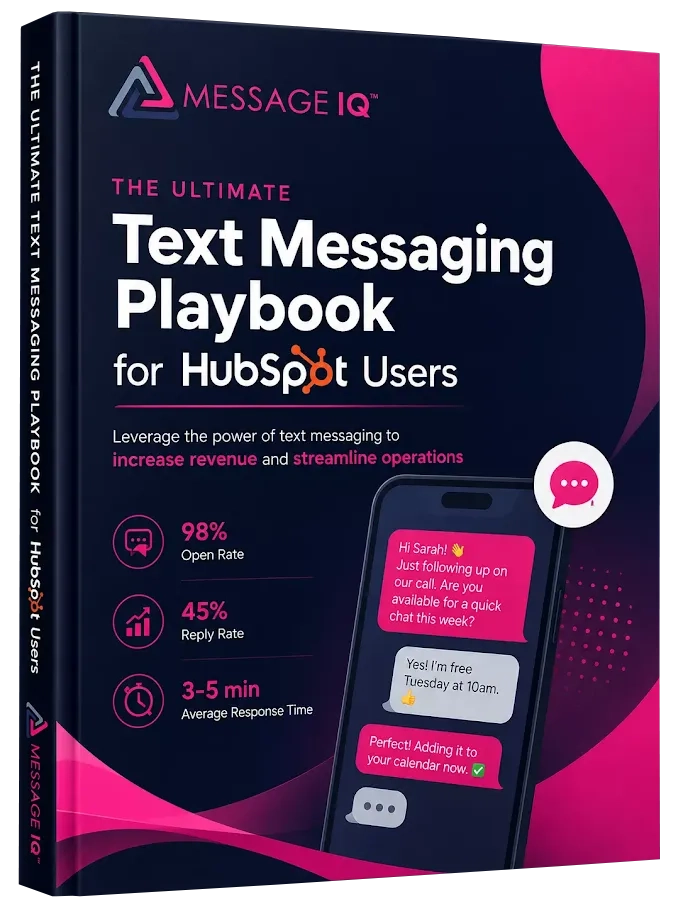
Get Your Ultimate HubSpot Text Messaging Playbook for FREE
Discover how top HubSpot teams use SMS to boost engagement, close deals faster and streamline operations.
Instant download
Expert insights from certified HubSpot professionals
Ultimate Text Messaging Playbook
SMS Templates for Every Stage of the Sales Funnel
Good SMS templates for sales share three characteristics: they’re short, they reference something specific, and they include a clear next step. Here are additional templates organized by funnel stage.
A Quick Note on Message Length and Segments
Every SMS template in this guide includes a character count for a reason. Standard text messages max out at 160 characters per segment using GSM-7 encoding. Add an emoji, an accented character, or certain symbols, and the encoding switches to UCS-2, which drops the limit to roughly 70 characters per segment. Go over the limit and the message splits into multiple segments, typically 153 characters each, stitched back together on the recipient’s phone but billed and counted separately on your end.
Keep templates under 160 plain-text characters where you can. It keeps costs predictable and keeps the message reading like a text, not an email that got squeezed into a phone screen.
Use case: LinkedIn or event follow-up
“Hi {{first_name}}, great connecting at {{event_name}}. Wanted to follow up and see if a quick intro call makes sense. — {{rep_name}}” (134 chars)
Use case: Proposal sent, no reply
“Hi {{first_name}}, sent over the proposal on {{date}}. Let me know if you have questions or want to adjust anything before you decide. — {{rep_name}}” (150 chars)
Use case: Trial or free account follow-up
“Hi {{first_name}}, saw you set up your account. Happy to walk you through the features that matter most for your team in 20 minutes. — {{rep_name}}” (149 chars)
Use case: Post-close onboarding kickoff
“Hi {{first_name}}, welcome to {{company}}! Your onboarding call is booked for {{date}}. Reply here with any questions before then. — {{rep_name}}” (147 chars)
For more copy examples organized by industry and use case, see the SMS follow-up strategies guide.
HubSpot SMS Workflow Automation vs Email: The Real Comparison
Sales teams often ask whether they should replace email sequences with SMS automation or run them alongside each other. The answer depends on the stage and the goal.
| Factor | HubSpot SMS Workflow Automation | HubSpot Email Sequences |
| Open rate | ~98% | ~20% |
| Response time | Minutes | Hours to days |
| Best stage | Speed-to-lead, reminders, re-engagement | Nurture, education, proposals |
| Character limit | 160 per segment | No limit |
| Opt-in required | Yes (TCPA) | CAN-SPAM rules apply |
| Two-way replies | Native with Message IQ | Not built for replies |
| Delivery | Carrier-dependent | Email server dependent |
| Ideal cadence | 2 to 4 touches per sequence | 5 to 8 touches per sequence |
The highest-performing sales teams don’t choose between SMS and email. They use both. Email handles the educational and detailed content. SMS handles the real-time moments where a fast reply changes the outcome: first touches, meeting reminders, deal nudges, and re-engagement.
For a deeper breakdown of when to use each channel, read HubSpot SMS vs email.
Measuring SMS Workflow Performance Inside HubSpot
Every HubSpot workflow has a Performance tab showing enrollment counts, active contacts, and goal completion rates. Set a workflow goal, for example “Deal Stage = Meeting Booked,” and HubSpot tracks what percentage of contacts enrolled in your SMS workflow actually hit that outcome, versus contacts who didn’t go through the workflow at all.
- Compare goal completion rate for SMS-enrolled contacts against a control group not enrolled, to isolate the lift SMS is actually driving
- Message IQ logs delivery and reply status to the contact timeline, so you can build a custom report filtering by “SMS Replied = Yes” against deal outcomes
- Revisit the ROI calculator’s projection against your actual goal completion numbers after 30-60 days to see how close the estimate landed
Projecting SMS revenue before you build is useful for buy-in. Checking the workflow’s Performance tab after launch is what tells you whether to expand it or fix it.
TCPA Compliance for HubSpot SMS Workflow Automation
HubSpot SMS workflow automation for sales teams operates under TCPA rules, and ignoring those rules creates serious liability. Here’s what your team needs to have in place before any automated text goes out.
Written Opt-In Consent Is Required
You need explicit written consent before sending marketing or sales SMS to any contact. That means a checkbox on your form, a clear consent statement, and a record of when and how the contact opted in. Verbal consent doesn’t count. Implicit opt-in from a business card exchange doesn’t count.
Message IQ includes built-in opt-in and opt-out handling. Contacts who reply STOP are removed from all messaging automatically. That opt-out is logged in HubSpot so no future workflow can accidentally re-enroll them.
Automating SMS Opt-In With a Workflow (and Importing Existing Contacts)
You can automate consent capture so nobody updates opt-in fields by hand. Add a separate, unchecked SMS consent checkbox to your forms, then build a workflow that triggers when a contact checks the box and sets the contact’s SMS subscription status, with legal basis, to opted in. Stamp “SMS consent date” and “SMS consent source” properties in the same workflow so you have a record if anyone ever asks.
Before you upload existing contacts into any SMS tool, run this checklist:
When consent is unclear, ask for it again by email before you text.
Confirm each contact gave consent to receive texts from your business specifically, not just an email opt-in or a phone number on a form.
Record the consent date, source, and wording for every contact you import.
Remove anyone who previously replied STOP or asked you to stop contacting them.
Strip landlines and invalid numbers, and format the rest with a +1 country code.
Send a first message that identifies your business and includes opt-out language.
Quiet Hours Apply
TCPA requires that automated texts only send between 8am and 9pm in the recipient’s local time zone. HubSpot’s workflow scheduling settings let you restrict send windows. Always cap your SMS workflows to business hours unless you have explicit permission for after-hours contact.Some states set tighter windows, so check the rules where your contacts live. HubSpot’s native SMS also turns on quiet hours by default, holding sends from 8 PM to 8 AM in each contact’s time zone.
10DLC Registration Is Non-Negotiable
Sending automated B2B SMS without 10DLC registration gets your messages filtered or blocked by carriers, regardless of content quality. Register before you build your first workflow, not after you notice delivery dropping.
For a full TCPA compliance checklist and sample opt-in language, follow the linked guide before you go live.
SMS Workflow Not Triggering? 7 Things to Check
When a HubSpot SMS workflow doesn’t fire, the cause is almost always one of these seven:
- The workflow is off. Check the toggle in the top right of the workflow editor.
- Enrollment criteria don’t match. Open the contact record and compare its properties to the trigger, filter by filter.
- Re-enrollment is off. Contacts who already went through the workflow won’t enter again unless you turn on re-enrollment for that trigger.
- The contact isn’t opted in. Your consent filter (or HubSpot’s own SMS subscription check) quietly blocks contacts without SMS consent.
- The phone number has the wrong format. Numbers without a +1 country code, or stored in the wrong property, fail at send time.
- Quiet hours are holding the send. HubSpot queues the message and sends it when the window opens, so it isn’t missing.
- The action errored. Open the workflow’s action logs to see the exact failure reason for each contact.
If messages send but don’t arrive, the problem is delivery, not the workflow. Our SMS deliverability troubleshooting guide covers carrier filtering.
Common Mistakes in HubSpot SMS Workflow Automation
Enrolling Contacts Without Opt-In
The most common mistake is pulling all marketing contacts into an SMS workflow without verifying consent. Just because a contact is in your HubSpot CRM doesn’t mean they opted in to receive texts. Always filter enrollment by an opt-in property.
Writing Messages That Read Like Email
SMS messages that open with “I wanted to follow up on my previous email regarding…” kill reply rates immediately. SMS is a conversational channel. Write the way a person talks. Keep it short. Ask one clear question. Skip the preamble.
Not Branching on Reply
A workflow that sends a text, waits, then sends another text regardless of whether the first one got a reply is a broadcast sequence dressed up as automation. Real HubSpot SMS workflow automation branches based on contact behavior. If they replied, the next step changes.
Using Generic Merge Tags Poorly
{{first_name}} is a start, not a finish. If your HubSpot data is dirty, “Hi ,” looks worse than no personalization at all. Audit your contact properties before you run any personalized SMS workflow. Make sure first name, deal owner, and company are populated for your enrolled contacts.
Ignoring SMS Deliverability
Unregistered numbers, spammy message content, and link shorteners that aren’t on the carrier-approved list all kill delivery rates. Read the SMS deliverability troubleshooting guide if your messages aren’t landing.
Kickoff Checklist Before You Launch SMS Automation
Complete these ten items before your first SMS workflow goes live. Enterprise teams should assign an owner to each one.
Reporting: Build the dashboard you’ll review at 30 and 60 days before you launch, not after.
Goals: Pick one workflow to launch first and the HubSpot goal that defines success, such as “Meeting booked.”
Ownership: Name an owner for SMS workflows, templates, and compliance decisions.
Consent: Confirm your forms capture separate SMS consent and that a workflow writes it to HubSpot.
Registration: Submit 10DLC brand and campaign registration (or toll-free verification) and wait for approval.
Data: Clean phone numbers to +1 format and fill first name and owner on contacts you’ll enroll.
Templates: Approve copy, character counts, and opt-out language for every message.
Routing: Decide which inbox receives replies and who answers them, including after hours.
Coordination: Map which email sequences and SMS workflows can touch the same contact, and cap combined frequency.
Testing: Run each workflow on internal test contacts before turning it on for real ones.
How Message IQ Powers HubSpot SMS Workflow Automation for Sales Teams
Message IQ is not a third-party integration bolted onto HubSpot through a webhook. It’s a native HubSpot SMS tool built specifically for teams that live inside the CRM. Here’s what that means in practice:
- Native workflow action: SMS send appears in HubSpot’s workflow action menu. No Zapier, no separate trigger setup.
- Two-way by default: Every conversation is two-way. Replies route to the contact owner in the shared team inbox.
- Contact timeline logging: Every outbound SMS and every reply logs to the HubSpot contact timeline. Your reps see the full conversation history alongside emails, calls, and notes.
- TCPA-compliant opt-out handling: STOP replies update the contact record automatically and prevent re-enrollment.
- Starts at $49/mo: No enterprise contract required to get full workflow automation running.
- 275+ integrations via Integrate IQ: Message IQ connects to the broader Integrate IQ ecosystem, which means your SMS data can flow alongside other platforms your team uses.
Sales teams that want a comparison of the top SMS tools available for HubSpot can read the best HubSpot SMS integrations guide.
Frequently Asked Questions
What is HubSpot SMS workflow automation?
HubSpot SMS workflow automation is the ability to trigger, send, and branch SMS messages to contacts automatically using HubSpot’s native workflow builder. With Message IQ installed, SMS actions appear directly in the workflow editor. You can fire texts based on any HubSpot enrollment trigger, add delays and branch logic based on reply behavior, and route conversations to the right sales rep without leaving HubSpot.
Can HubSpot send automated text messages natively?
Yes, with limits. HubSpot’s Marketing SMS Add-On lets you publish an SMS message for automation and send it from Marketing Hub workflows, but only to opted-in marketing contacts and only on Marketing Hub Professional or Enterprise. For sales workflows on deals, tickets, or companies, you need an SMS integration like Message IQ. Once connected, Message IQ’s SMS action behaves like any other native HubSpot action inside the workflow builder.
Does HubSpot SMS workflow automation work for two-way conversations?
Yes, with Message IQ. Every message sent through a HubSpot SMS workflow is part of a two-way conversation by default. When a contact replies, the response routes to the shared team inbox and logs to the contact record in HubSpot. Reps can continue the conversation manually from inside HubSpot or let the workflow handle the next step based on reply behavior.
Do I need contact opt-in to run SMS workflows in HubSpot?
Yes. TCPA requires written opt-in consent before sending automated marketing or sales SMS. Your workflows should filter enrollment using an opt-in contact property so only consented contacts enter the sequence. Message IQ includes built-in opt-out handling that automatically stops messaging contacts who reply STOP.
How much does HubSpot SMS workflow automation cost?
Message IQ starts at $49/mo. HubSpot doesn’t bill separately for texts you send through Message IQ, but building workflows requires a Professional-tier hub. For a full breakdown of what you’ll pay at each tier, see the HubSpot SMS pricing guide.
What’s the best first SMS workflow to build for a sales team?
Start with the speed-to-lead workflow. Set the enrollment trigger to a demo request or high-intent form submission, fire an SMS within 60 seconds of submission, and add a branch based on whether the contact replies within 24 hours. This one workflow will show results faster than any other because it attacks the biggest drop-off point in most sales processes: slow first response time.
How do I avoid getting SMS messages filtered by carriers?
Register your phone number under A2P 10DLC before you send any automated messages. Use a registered long code or toll-free number. Avoid URL shorteners that aren’t carrier-approved. Don’t include phrases that trigger spam filters: “FREE,” “WINNER,” “$$$,” or urgent all-caps phrasing. Message IQ’s deliverability guide covers the full list of filtering triggers.
Can I add SMS to a HubSpot Sequence?
Not directly. HubSpot Sequences, the Sales Hub tool reps use for email cadences, only supports email steps and tasks. You can’t drop a text message into a Sequence the way you add an email. The common workaround is running a parallel contact-based Workflow alongside the Sequence: when a contact enrolls in the Sequence, a second Workflow fires and sends the SMS through Message IQ at the same time. Reps handle email touchpoints through the Sequence while SMS runs automatically in the background.
Can I send iMessage from HubSpot workflows?
Not through any official channel. Apple doesn’t offer businesses an API to start iMessage conversations, and Apple Messages for Business only lets a customer start the chat. Some tools route texts through Apple devices to look like iMessage, but that sits outside Apple’s business program and can get accounts flagged. For reliable workflow automation, send standard SMS and MMS, which reach every phone, iPhone or Android, and log cleanly to HubSpot.
Start Running HubSpot SMS Workflow Automation for Your Sales Team
Your sales team is already in HubSpot. Your leads are already in HubSpot. The gap is the channel: email alone isn’t fast enough or visible enough to win the first-response battle at the top of the funnel.
HubSpot SMS workflow automation closes that gap. Speed-to-lead workflows fire within seconds. Re-engagement sequences reach contacts who stopped opening emails. Deal nudges move stuck pipeline without requiring a rep to manually follow up on every open deal.
Message IQ runs all of it inside the HubSpot workflow builder you already know. Two-way by default. TCPA-compliant opt-out built in. Plans starting at $49/mo.
See how Message IQ connects to your HubSpot and send your first automated SMS from a workflow today.
See how much revenue SMS could add to your HubSpot stack
Five inputs. Industry-backed benchmarks. Get your projected annual SMS revenue in under 30 seconds.
Calculate My SMS ROI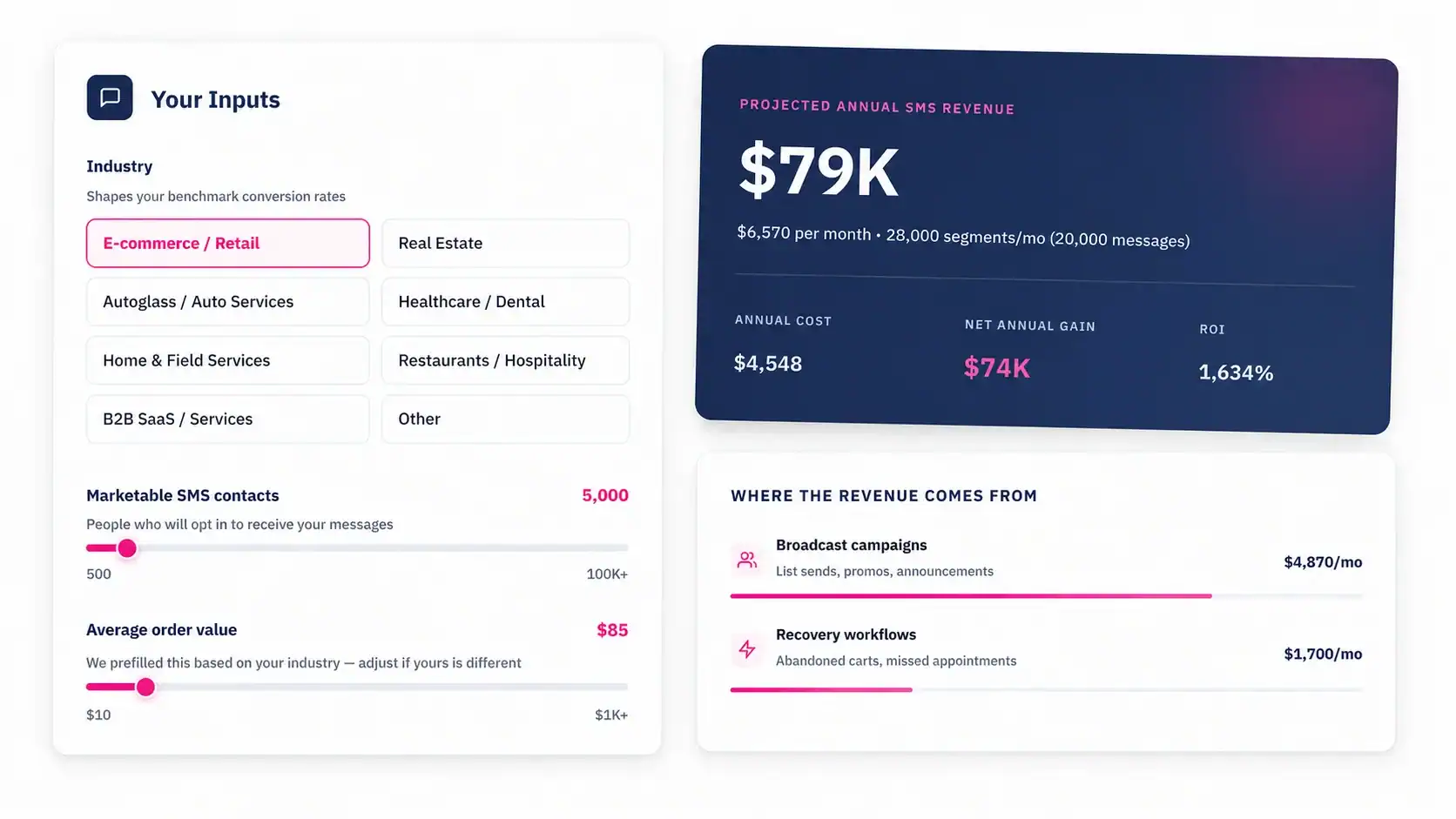
Talk to an Expert