

Two-way SMS marketing means sending text messages that customers can actually reply to with those replies landing somewhere your team can see and act on. This guide walks through the full setup: getting consent, picking a platform, connecting it to your CRM, launching your first two-way workflow, and testing that replies actually show up where you expect them.
This is for marketers, sales teams and operations leads setting up two-way texting for the first time, or replacing a one-way blast tool that can’t handle replies. Most teams get a working setup live in 30-45 minutes, once consent and a phone number are in place.
What is two-way SMS marketing? It’s a text messaging setup where recipients can reply to your messages and start a real conversation, as opposed to one-way SMS, which only sends outbound blasts with no path for a response. Two-way SMS requires a dedicated number (long code or short code), a platform that routes inbound replies to a shared inbox or CRM record, and a compliance process for opt-in and opt-out.
One-way vs. two-way SMS at a glance
| One-way SMS | Two-way SMS | |
| Direction | Business → customer only | Business ↔ customer |
| Customer replies | Ignored or undeliverable | Logged and actionable |
| Typical use | Blasts, alerts, announcements | Confirmations, support, sales follow-up |
| Requires a dedicated number | Sometimes (shared short code often fine) | Yes — long code or short code registered for two-way |
| CRM/inbox routing needed | Optional | Required to make replies useful |
The gap between the two is bigger than it looks on paper. SMS already gets opened at rates near 98%, but one-way blasts waste most of that attention since there’s no path back to your team. When customers can reply, response times average under two minutes, and platforms report meaningfully higher engagement than one-way sends which is the entire case for spending 30-45 minutes on the setup below instead of just turning on outbound texting.
Before you touch a platform, you need three things in place: consent to text your list, a phone number capable of two-way messaging, and a CRM or inbox where replies will land. Here’s how to set all three up correctly, in order.
What you’ll need
Written consent from your contacts. SMS marketing under TCPA requires prior express written consent before you send anything promotional.
A CRM or shared inbox where two-way conversations will be logged. This guide uses HubSpot as the example, since it’s the most common setup among teams making this switch.
A HubSpot plan that supports Workflows if you want SMS to trigger automatically (Marketing Hub Professional or higher). You can still do two-way SMS manually on lower tiers, just without workflow automation.
A two-way SMS platform with a dedicated number. We’ll use Message IQ for the walkthrough steps since it installs directly from the HubSpot Marketplace, but the consent and compliance steps apply no matter which platform you choose.
15-20 minutes for platform setup, plus time for 10DLC number registration (see Step 2).
Quick compliance primer
Get this right before you send a single message. The TCPA requires prior express written consent for marketing texts, and CTIA guidelines require every message to include a clear opt-out path. In practice, that means:
- Consent should come from an explicit action (a checked box, a reply to a keyword, a signed form), not a pre-checked default
- Every marketing text needs a way to opt out, typically “Reply STOP to unsubscribe”
- Opt-outs must be processed immediately and permanently, not just muted for one campaign
- If you’re registering a 10DLC number, your carrier registration will ask for your consent-collection method, so document it before you apply
For the full legal detail, see our guide to TCPA and CAN-SPAM for SMS marketing. The rest of this guide assumes you already have consent to text the contacts you’re setting this up for.
Step 1: Choose a two-way SMS platform with CRM integration
Not every SMS tool supports real two-way conversations, and not every “two-way” tool integrates with your CRM the same way. Before you commit, check three things: does the platform support inbound replies at all, does it log those replies to a contact record automatically, and does it work as a native action inside your CRM’s automation builder or does it require Zapier as a middle layer.
For HubSpot teams, Message IQ installs as a native app from the HubSpot Marketplace and adds SMS as a workflow action that sits next to email, so contacts, personalization tokens, and automation triggers all behave the way they already do for email. It starts at $49/month, month-to-month, with a 30-day money-back guarantee, and it’s available in the US and Canada.

Step 2: Register your number and set up 10DLC compliance
Two-way texting requires a dedicated number that carriers recognize as a business sender. In the US, this means 10DLC (10-digit long code) registration, which most SMS platforms handle for you during setup.
- From your SMS platform’s onboarding flow, select a local long code number (or a toll-free number, if your platform supports it) for two-way texting.
- Submit your business registration details: legal business name, EIN, and a description of your messaging use case.
- Wait for carrier approval. Long code (10DLC) registration typically clears in 1-2 weeks. Short codes take considerably longer, often 8-12 weeks, so long code is the practical choice for most teams that want to launch soon.
Message IQ assigns a single IQ Number to your account on installation, and that one number autoscales with your volume, so you’re not managing a pool of numbers as your list grows.

Step 3: Install and connect your SMS platform to HubSpot
- In HubSpot, go to Automation → App Marketplace and search for Message IQ.
- Click Install and authorize the connection to your HubSpot portal.
- On install, Message IQ automatically creates an Active List for opted-in contacts and adds custom fields (including a Message IQ Opt-Out property) to your contact records. You don’t need to build these manually.
You should see the Message IQ app appear under your installed integrations, and a new Conversations tab where two-way SMS threads will show up once messages start flowing.

Step 4: Build your opt-in list
If you already have written consent from an existing list, import those contacts into the Active List Message IQ created in Step 3. If you’re building consent from scratch:
- Add an SMS opt-in checkbox to your web forms, separate from your email opt-in checkbox. Bundling the two is a common compliance mistake; SMS consent has to be its own explicit action.
- For in-person or phone-based signups, use a keyword opt-in (a customer texts a word like “JOIN” to your number) so the consent record is timestamped and text-based.
- Confirm every new opt-in with an automatic welcome text that repeats what they signed up for and how to opt out.
Step 5: Add the SMS action to a HubSpot workflow
This is where two-way SMS becomes automated instead of manual.
- Go to Automation → Workflows and either create a new workflow or open an existing one (for example, a lead follow-up or appointment reminder workflow).
- Click the + icon to add an action, then search for and select Message IQ.
- Fill in the action fields: Message Name (an internal label so you can find this step later), From Phone (your IQ Number, auto-populated), To Phone (the contact’s phone number property), and Message Body (your text, with HubSpot personalization tokens like {{contact.firstname}} working the same way they do in email).
- Set your enrollment trigger (for example, “Contact property Lifecycle Stage is Lead” or “Form submitted”).
You should see the Message IQ step appear in your workflow’s visual builder exactly like an email action, with a green checkmark once the fields are filled in correctly.
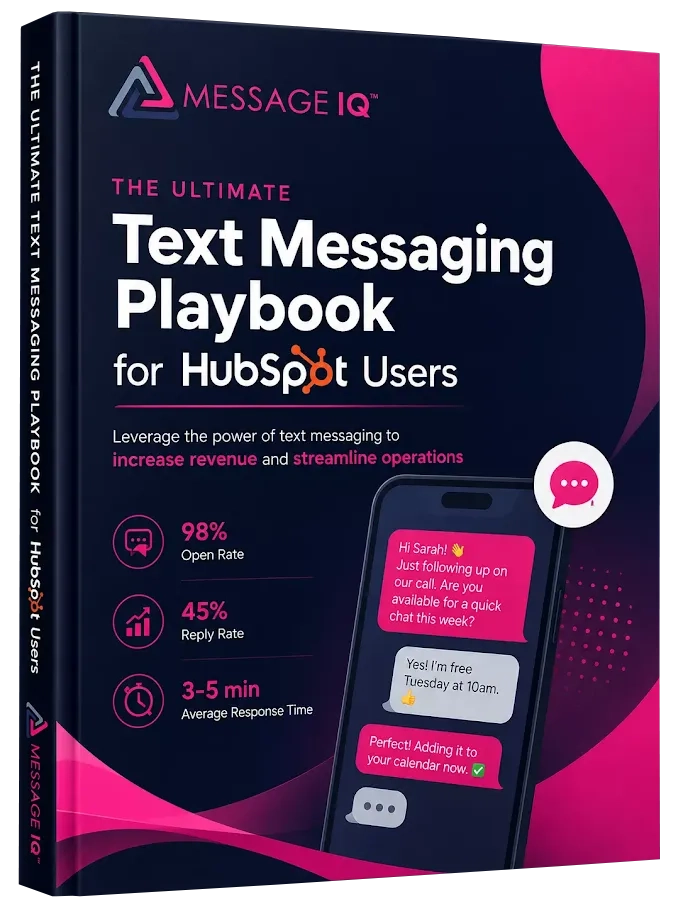
Get Your Ultimate HubSpot Text Messaging Playbook for FREE
Discover how top HubSpot teams use SMS to boost engagement, close deals faster and streamline operations.
Instant download
Expert insights from certified HubSpot professionals
Ultimate Text Messaging Playbook
Step 6: Write your first message
Keep your first message short and give the recipient an obvious reason to reply. A message like “Hi {{contact.firstname}}, this is [Business Name]. Reply YES to confirm your appointment or STOP to opt out” does three things at once: personalizes, prompts a reply, and satisfies opt-out compliance in one line.
Auto-shortened, trackable links work the same way Message IQ handles them elsewhere, so any URL you drop into the message body gets shortened and tracked automatically.
Step 7: Turn on the workflow and send a test message
- Add your own phone number to a test contact record in HubSpot.
- Turn the workflow on and manually enroll your test contact, or trigger the enrollment condition yourself.
- Confirm you receive the text on your phone within a few minutes.
- Reply to the message from your phone.
How to confirm it worked
Go to the contact record for your test contact in HubSpot and open the Message IQ CRM card. You should see the outbound message you sent and your reply logged in the same thread, timestamped, without needing to check a separate app. If you check the Conversations tab, the same exchange should appear there too.
If the reply doesn’t show up within a minute or two, don’t assume it failed. Move to the troubleshooting section below before re-sending.
Troubleshooting common issues
Problem: The workflow isn’t enrolling contacts.
Why it happens: The enrollment trigger condition doesn’t match the contact’s current property values, or the workflow is still in draft/off state.
Fix: Check that the workflow toggle is set to On, then open the contact record and verify the property values match your enrollment trigger exactly (property names and values are case-sensitive in some conditions). Re-test by manually enrolling one contact from the workflow’s contact list.
Problem: The message shows as sent, but never gets delivered.
Why it happens: This is usually a carrier filtering issue, often tied to a low trust score on a newly registered 10DLC number, or a number that hasn’t finished carrier approval.
Fix: Check your 10DLC registration status first. If it’s still pending, delivery will be unreliable until it’s approved. If it’s approved and delivery is still failing, check Message IQ’s delivery report for a carrier-level rejection code rather than assuming it’s a platform bug.
Problem: A contact replied, but nothing shows up in HubSpot.
Why it happens: Either the contact’s phone number in HubSpot doesn’t exactly match the number the reply came from (formatting mismatch), or the Message IQ integration lost its connection.
Fix: Check the phone number format on the contact record (it should match the format Message IQ expects, typically E.164 with a country code). If the format is correct, check Automation → App Marketplace → Message IQ to confirm the connection status still shows Active.
Problem: Opt-out replies (STOP) aren’t being processed.
Why it happens: The opt-out keyword handling isn’t connected to the Message IQ Opt-Out property, often because the property was manually deleted or renamed after install.
Fix: Confirm the Message IQ Opt-Out property still exists under contact properties. If it was renamed or deleted, reinstall the app to recreate it rather than rebuilding it manually, since the platform’s opt-out logic is built to reference that specific property.
Problem: Personalization tokens show up as literal text (like {{contact.firstname}}) in the delivered message.
Why it happens: The token syntax doesn’t match HubSpot’s exact property name, or the contact record is missing that property value.
Fix: Double-check the property name in Settings → Properties and confirm the contact you’re testing with actually has a value in that field. Blank fields sometimes render the token as literal text instead of failing silently.
Best practices once you’re live
- Send your first message to a contact within a reasonable window of when they opted in, while the context is still fresh
- Keep messages under 160 characters where possible to avoid multi-segment charges and awkward mid-message splits
- Set expectations for reply time in your first message if you’re not responding instantly (“We typically reply within 1 business hour”)
- Review your delivery reports weekly during the first month to catch carrier trust score issues early
- Segment your Active List by opt-in source so you can measure which channel produces the highest reply rate
FAQ
Do I need a separate phone number for two-way SMS marketing?
Yes. Two-way SMS requires a dedicated number registered for business messaging, either a long code (10DLC) or short code. You can’t run compliant two-way SMS marketing from a personal cell number or a number that hasn’t completed carrier registration.
How long does it take to set up two-way SMS marketing?
Platform installation and workflow setup usually take 15-20 minutes. The main variable is 10DLC number registration, which typically clears in 1-2 weeks, so plan your launch date around that timeline rather than the software setup itself.
Can I add two-way SMS to an existing HubSpot workflow, or do I need to build a new one?
You can add the Message IQ action to any existing workflow. It behaves like adding a new email step: drop it in at the point in the workflow where you want the text to send.
What happens if a contact replies with something other than STOP or an expected keyword?
The reply logs to the contact’s record and the Conversations tab like any other message, so a human on your team can see and respond to it directly. Two-way SMS doesn’t require every reply to match a predefined keyword to be useful.
Does two-way SMS marketing cost more than one-way SMS?
Not inherently. Message IQ starts at $49/month whether you’re sending one-way blasts or two-way conversations; the cost difference between platforms usually comes from message volume and per-user pricing, not from two-way capability itself.
Can I run two-way SMS marketing outside the US and Canada?
Message IQ currently supports the US and Canada only. If you need international two-way SMS, you’ll need a platform with broader carrier coverage, since 10DLC registration and short code rules vary significantly by country.
Set up your first two-way SMS workflow
You now have the full path: consent, a registered number, a platform connected to your CRM, and a tested workflow that logs replies where your team can see them. If you’re doing this inside HubSpot, Message IQ installs directly from the Marketplace and adds SMS as a native Workflow action, so the setup above maps onto an app you can have running today. It starts at $49/month, month-to-month, with a 30-day money-back guarantee if it’s not the right fit.
Curious what this setup is worth in practice? Use the calculator below to see the projected return before you commit.
See how much revenue SMS could add to your HubSpot stack
Five inputs. Industry-backed benchmarks. Get your projected annual SMS revenue in under 30 seconds.
Calculate My SMS ROI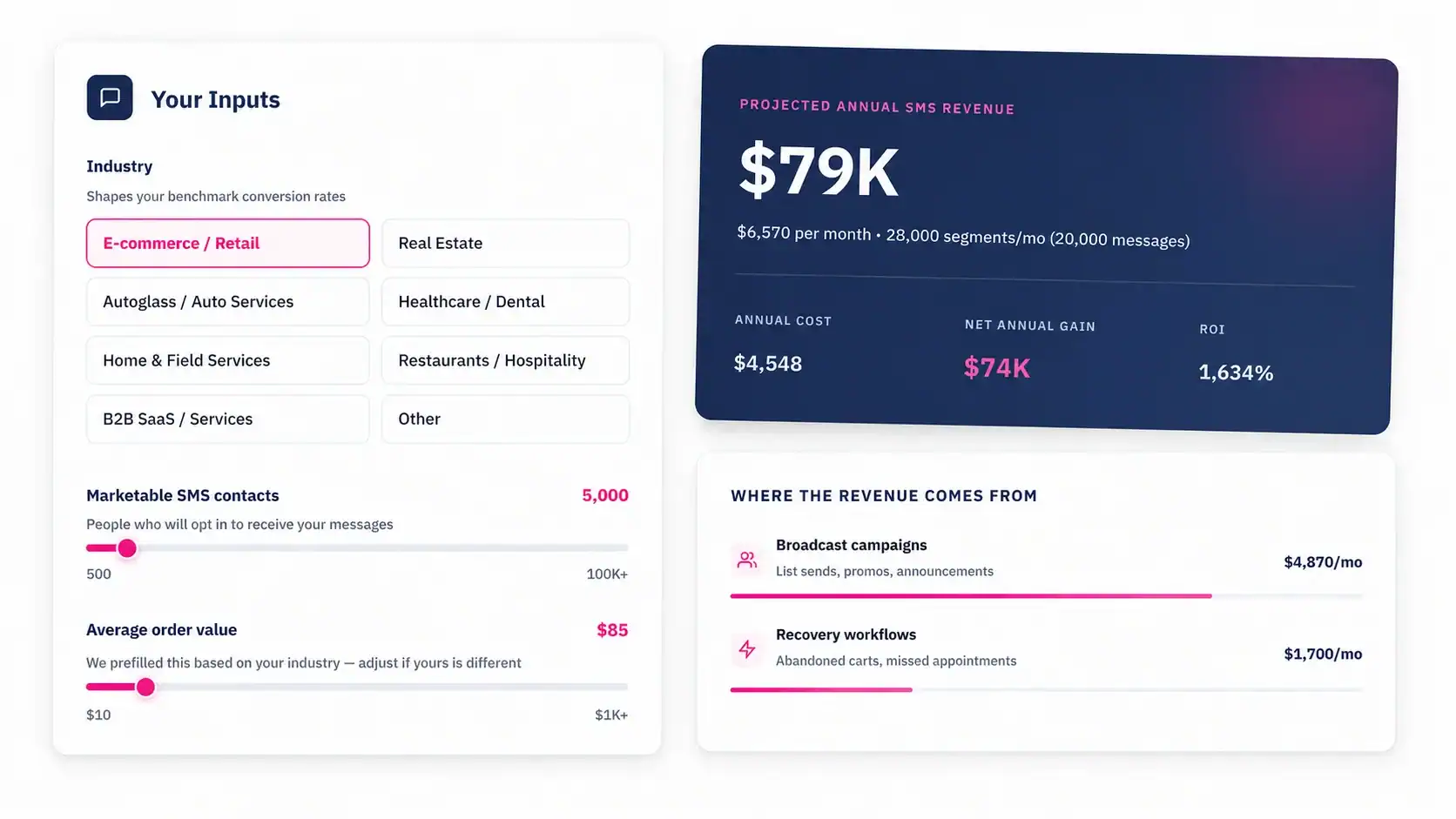
How to Calculate Your ROI