
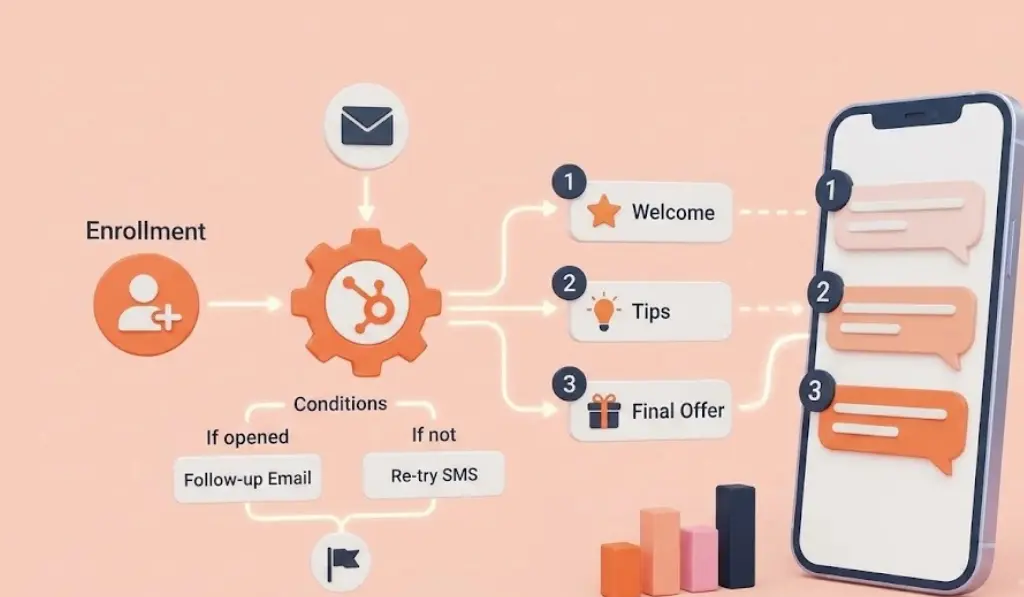
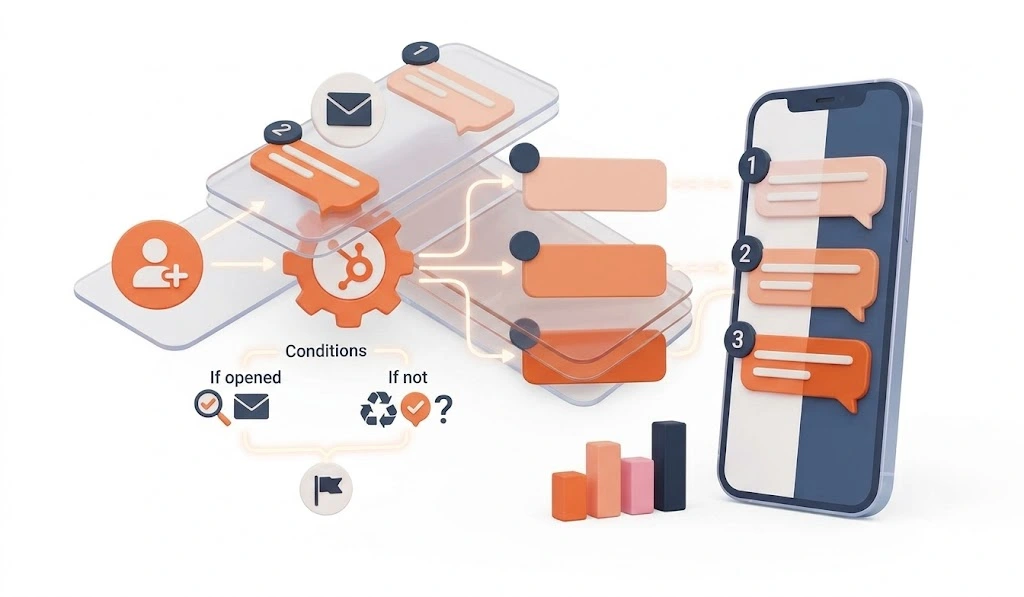
A HubSpot SMS onboarding sequence is a set of automated text messages that fire inside a HubSpot workflow the moment someone becomes a customer, walking them through their first days without a rep lifting a finger. If you already run an email onboarding series, adding SMS on top of it, not instead of it, tends to move activation numbers fast: text messages get opened around 98% of the time, while most onboarding emails sit closer to 20-30%. This guide is for HubSpot users who already have a lifecycle stage defined for customers and want to layer in text messages using workflow logic they already know.
An SMS onboarding sequence usually runs three to five messages: a welcome text, one or two check-ins, and a final nudge toward the feature that proves the product’s value. Most teams get a working version live in 20 to 30 minutes. Before you touch the workflow builder, here’s what needs to be in place first.
Triggering Onboarding Texts from Contact Activity (Not Just Timers)
Most onboarding sequences fire on a fixed delay: Day 1, Day 3, Day 7. That works for a baseline cadence, but the contacts who actually engage deserve a faster track.
In HubSpot, you can trigger onboarding SMS based on what the contact does, not just when they signed up. If a new user completes their first task inside your product (tracked via a HubSpot contact property update), fire an immediate congratulatory text with the next step. If they log in but don’t complete setup after 24 hours, fire a nudge with a link to your getting-started guide.
This activity-based approach converts better than time-based drips because the message arrives at the moment the contact is most likely to act on it. Message IQ fires these texts directly from HubSpot workflow enrollment triggers, so the sequence adapts to each user’s actual behavior.
What You’ll Need
- A HubSpot account on a plan that includes Workflows (Marketing Hub Professional, Sales Hub Professional, or Service Hub Professional and above)
- Message IQ connected to your HubSpot portal, installed from the App Marketplace
- A lifecycle stage or property that reliably marks someone as a customer
- An opt-in property on the contact record confirming they’ve agreed to receive texts
- At least one draft of a welcome message, even a rough one, to start from
[ HubSpot Settings > Properties, showing an SMS opt-in custom property on the contact record.]
A Quick Word on Consent Before You Build
Every message in this sequence has to go to someone who’s actually opted in to text messaging. TCPA requires written consent before you send automated marketing or transactional texts, and building the enrollment trigger around your opt-in property is what keeps you compliant instead of hoping it works out. Message IQ includes a built-in Message IQ Opt-Out property that gets created automatically on install and updates the moment a contact replies STOP, so unsubscribes flow back into HubSpot without any manual cleanup. If your opt-in process isn’t nailed down yet, read our guide on TCPA and CAN-SPAM for SMS marketing before you enroll a single contact.
Building the Sequence: 6 Steps
Here’s the full build, start to finish.
Step 1: Set the Enrollment Trigger
Go to Automation → Workflows → Create workflow, and start from a blank contact-based workflow. Set the enrollment trigger to fire when your lifecycle stage property changes to “Customer” (or whatever stage marks a closed deal) AND your SMS opt-in property equals “Yes.” Stacking both conditions with AND, not OR, is what keeps unconsented contacts out of the sequence.
You should see the trigger summary read something like “Lifecycle stage is Customer AND SMS Opt-In is Yes” before you move on.
[Workflow enrollment trigger panel with lifecycle stage and opt-in property conditions stacked with AND logic.]
Step 2: Add the Welcome Message
Click the + icon under the trigger and search for Message IQ. Select the Send SMS action. This is the same action type sitting next to email actions in the workflow builder, so the setup will feel familiar if you’ve built email workflows before.
Fill in the fields:
- Message Name: something internal, like “Onboarding – Welcome”
- From Phone: your IQ Number
- To Phone: leave this mapped to the contact’s phone property
- Message Body: write your welcome text using a personalization token for the first name, something like “Hi {{first_name}}, welcome to [Company]! I’m here if you need anything as you get set up. Reply anytime.”
Save and publish the message template before moving to the next step. You should see the action card in the workflow show the published template name, not a draft warning.
[ Message IQ Send SMS action panel with Message Name, From Phone, To Phone, and Message Body fields filled in.]
Get Your Ultimate HubSpot Text Messaging Playbook for FREE
Discover how top HubSpot teams use SMS to boost engagement, close deals faster and streamline operations.
Instant download
Expert insights from certified HubSpot professionals
Ultimate Text Messaging Playbook
Step 3: Add a Delay Before the Check-In
Click the + below the welcome action and choose Delay. Set it to wait 2-3 days. Firing every message back-to-back reads as spam, not onboarding, and spacing messages out gives the contact time to actually try the product before you check in.
The workflow canvas should now show: trigger, welcome SMS, delay, then an empty next step.
Step 4: Add the Check-In Message and Branch on Replies
Add a second Send SMS action after the delay. Keep it short: “Hey {{first_name}}, how’s it going so far? Reply here if you hit any snags.” Because Message IQ logs every reply as a two-way conversation on the contact record, you can add a branch after this step: if the contact replied, route them to a task for a rep; if not, continue the automated sequence.
To build the branch, add a workflow branch based on whether the Message IQ Opt-Out property or a reply-tracking property changed within 24 hours of the send. Contacts who reply exit into a manual follow-up path. Contacts who don’t reply continue to the next automated step.
[ Workflow branch logic showing a “replied” vs “no reply” split after the check-in SMS action.]
Step 5: Layer SMS Onto Your Existing Email Onboarding Workflow
If you already have an email onboarding series running, you don’t need to rebuild it. Open that existing workflow, and at the point where a welcome email currently sends, add a parallel Send SMS action alongside it, not a replacement. Use the same enrollment trigger and the same delay logic that’s already there, just add a text version of the highest-value touchpoint (usually the welcome message or the “haven’t logged in yet” nudge).
This is the setup most SMS-onboarding guides skip: they assume you’re starting from zero, but most HubSpot teams already have an email sequence built. Running both channels off the same trigger means one enrollment event handles email and SMS together, so you’re not maintaining two separate workflows that can drift out of sync.
See how much revenue SMS could add to your HubSpot stack
Five inputs. Industry-backed benchmarks. Get your projected annual SMS revenue in under 30 seconds.
Calculate My SMS ROI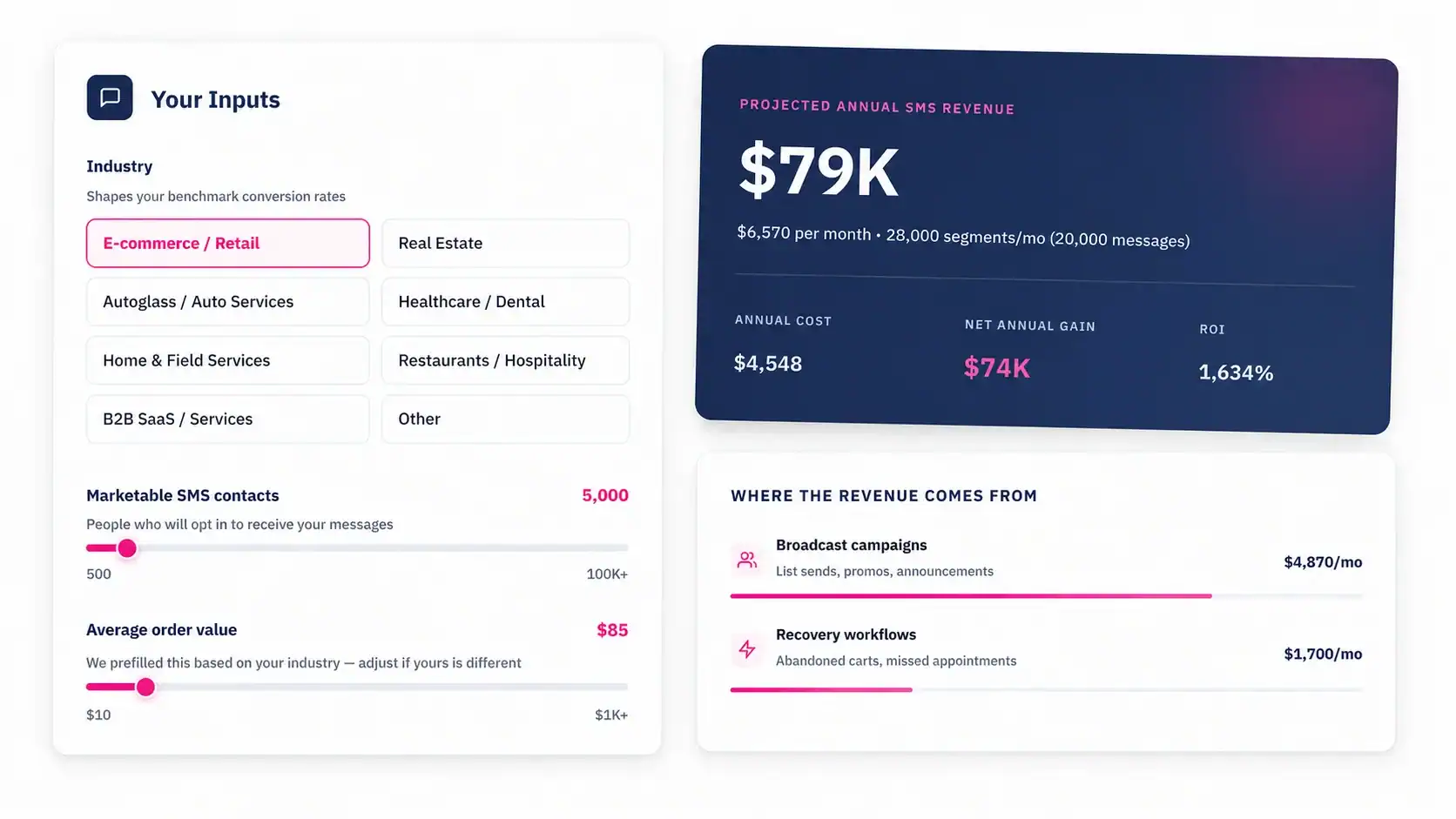
Step 6: Add the Final Activation Message
Add a last delay (5-7 days out), then a final Send SMS action pointing the contact toward the one feature or action that best predicts they’ll stick around: “Hi {{first_name}}, quick tip: most people who [key action] in their first week see the most value. Give it a shot and let me know how it goes.”
Publish the workflow once every action shows a green, published status. Turn it on.
Testing Before You Go Live
Create a test contact with a real phone number you control. Manually set their lifecycle stage and opt-in property to match your trigger conditions, then re-enroll them into the workflow. Confirm two things: the text actually arrives on the phone within a minute or two of enrollment, and the conversation shows up on the contact record’s timeline under the Message IQ CRM card. If both check out, you’re ready to enroll real contacts.
Troubleshooting Common Issues
Problem: The workflow isn’t enrolling any contacts.
Why it happens: The lifecycle stage property or opt-in property isn’t actually set to the value the trigger expects, often because a different workflow or form is writing a slightly different value into the property.
Fix: Open the contact record for someone who should have enrolled and check the exact property values against the trigger conditions. Re-save the trigger if the values don’t match, and audit any other workflow writing to that same property.
Problem: The message shows as sent in HubSpot, but the contact never got it.
Why it happens: This is usually a deliverability issue at the carrier level, not a HubSpot problem, especially if the number is new or hasn’t built up sending reputation yet.
Fix: Check message status inside Message IQ’s delivery logs, not just the HubSpot workflow history. Message IQ’s direct carrier relationships mean you can see delivery status per message instead of guessing, which is the gap most third-party SMS tools leave open.
Problem: A contact replied, but nothing shows up in HubSpot.
Why it happens: The reply is landing somewhere other than the contact’s timeline, usually because the SMS tool isn’t logging inbound messages back to the CRM record.
Fix: Confirm two-way logging is turned on in your Message IQ settings. Every reply should post to the same contact record automatically, visible in the Conversations Tab and on the timeline.
Problem: The sequence sends fine to test contacts but stalls for real ones.
Why it happens: Real contacts often have a phone number stored in a different property (a mobile number field instead of the primary phone property) than the one mapped in the workflow action.
Fix: Check the To Phone mapping in the Send SMS action against the property actually populated on your real contact records, and standardize on one phone property across your import and form processes.
Best Practices for the Sequence Itself
- Keep it to three to five messages total. More than that starts to feel like a drip campaign, not a welcome.
- Space messages by days, not hours, after the first welcome text.
- Write every message to sound like a person, not a brand. Short sentences, one idea per text.
- Always leave room for a reply. If a message doesn’t invite a response, it’s a broadcast, not onboarding.
- Review the branch logic monthly. If reply rates drop, the copy usually needs a refresh before the timing does.
Frequently Asked Questions
How many messages should a HubSpot SMS onboarding sequence include?
Most teams do well with three to five messages: a welcome text, one or two check-ins, and a final activation nudge. Going longer risks the sequence feeling like marketing rather than support.
Can I run SMS and email onboarding in the same HubSpot workflow?
Yes. Add a Send SMS action alongside your existing email actions in the same workflow, using the same enrollment trigger, so both channels fire off one event instead of two separate sequences that can drift apart.
Do I need a specific HubSpot plan to build this?
You need Workflows access, which comes with Marketing Hub Professional, Sales Hub Professional, or Service Hub Professional and above. Workflows aren’t available on Starter or free tiers.
What happens if a contact replies STOP mid-sequence?
Message IQ’s Message IQ Opt-Out property updates automatically the moment a contact replies STOP, and you can build a workflow branch that immediately unenrolls opted-out contacts from any active sequence.
How is this different from just sending one welcome text?
A single welcome text is a nice touch, but a sequence checks in over time, adapts based on whether the contact replies, and points them toward the action that actually predicts retention. That’s the difference between a greeting and an onboarding process.
Does Message IQ work outside the US?
Message IQ currently supports the US and Canada. If your onboarding contacts are outside those two countries, this workflow won’t reach them yet.
Getting Started
Once the sequence is built and tested, the rest is mostly watching reply rates and adjusting timing. Message IQ starts at $49 a month, month-to-month, with a 30-day money-back guarantee, so you can build this exact sequence and see whether it moves your activation numbers before committing to anything longer. Install it from the HubSpot Marketplace or see the full feature set on the SMS for HubSpot page.