
Most businesses already know they should be texting customers. The part that slows them down is assuming they need a developer to make it happen.
You don’t.
If your team is on HubSpot, you can send automated text messages to customers in under 30 minutes: no API, no code, no dev ticket required. MessageIQ, built by IntegrateIQ (HubSpot Diamond Solutions Partners), connects natively inside your HubSpot workflows so your team can trigger, schedule, and personalise SMS from the same place you already manage contacts.
This guide covers exactly how to do it: the setup, the workflows worth building first, ready-to-use templates, and the compliance steps you can’t skip.
What Does It Mean to Send Automated Text Messages?
An automated text message is an SMS sent without a person manually typing and hitting send each time. Instead, the message fires based on a trigger, a schedule, or a contact behaviour you define in advance.
There are three types of automated text message workflows worth knowing:
- Triggered messages: Sent instantly when something happens: a form fill, a deal stage change, a missed appointment
- Scheduled sequences: Automated text messages sent at set intervals: a 3-day onboarding series, a 30-day renewal reminder
- Broadcasts: One-time sends to a segment: a promotion, an event reminder, a policy update
Triggered and scheduled automations are where the real compounding lift comes from. They run in the background and convert without anyone on your team lifting a finger.
Why Businesses Send Automated Text Messages (and Why Email Alone Isn’t Enough)

98% of SMS messages are opened vs roughly 20% for email. Most texts are read within three minutes of delivery. That gap isn’t a reason to abandon email. It’s a reason to stop treating automated text messages as optional.
When a lead fills out a form at 9 PM and your team doesn’t respond until 9 AM, that lead has already talked to three competitors. The ability to send automated text messages closes that window. A workflow-triggered SMS can reach a new contact within 90 seconds of a form submission, any time of day, without anyone on your team being awake.
For a detailed breakdown of when each channel wins, see our SMS vs email comparison for HubSpot teams.
The use cases that drive the most consistent ROI:
- Speed-to-lead follow-up: First contact before the lead goes cold
- Appointment reminders: Reduce no-shows without any manual outreach
- Deal stage nudges: Trigger a text when a proposal goes unopened for 48 hours
- Onboarding sequences: Drip useful info to new customers over their first two weeks
- Re-engagement: Pull inactive contacts back into conversation
How to Send Automated Text Messages Inside HubSpot (Step-by-Step)
You don’t need a separate platform, a Zapier workaround, or a developer. Here’s the exact setup inside HubSpot using MessageIQ.
Step 1: Connect MessageIQ to Your HubSpot Portal
Install MessageIQ from the HubSpot App Marketplace. The connection takes under 10 minutes and doesn’t require any coding. Once connected, a MessageIQ SMS action becomes available inside every HubSpot workflow you build.
For a full walkthrough of the integration setup, see our HubSpot SMS integration guide.
Step 2: Create Your SMS Message
Inside HubSpot, navigate to Marketing > SMS. Click Create message and write your text. Use HubSpot contact tokens (like {{contact.firstname}}) to personalise each send. Keep the message under 160 characters where possible. Shorter texts consistently get faster replies.
Step 3: Publish the Message for Automation
In the SMS editor, click the Sending tab. Under Sending method, select As part of a workflow. This makes the message available as a workflow action. Publish it.
Step 4: Build Your Workflow
Navigate to Automation > Workflows. Create a new contact-based workflow and set your enrollment trigger. Then add the MessageIQ SMS action and select your published message.
A basic speed-to-lead workflow looks like this:
- Enrollment trigger: Contact submits a demo request form
- Action: MessageIQ sends automated text message: “Hi {{contact.firstname}}, thanks for your interest in MessageIQ. Want a 15-minute walkthrough of how it works inside your HubSpot? Reply to book a time. {{rep_name}}”
- Delay: Wait 24 hours
- Branch logic: Contact replied: assign to sales rep in shared inbox | No reply: send follow-up SMS after 24 hours
That’s it. The workflow runs automatically for every new form submission, day or night.
For more workflow examples across different use cases, see our SMS automation in HubSpot guide.
5 Automated Text Message Workflows Worth Building First
1. Speed-to-Lead (Form Submission)
Teams that respond to leads within five minutes are dramatically more likely to connect than teams that wait an hour. When you send automated text messages for speed-to-lead, that five-minute window becomes achievable without anyone being glued to their desk.
Workflow:
- Enrollment trigger: Contact submits any lead capture form
- Action: MessageIQ sends immediate automated text message
- Delay: 1 hour
- Branch logic: No reply: send second follow-up | Reply received: route to rep inbox
Use case: Speed-to-lead SMS
“Hi {{first_name}}, saw you reached out to {{company}} and happy to connect today. What time works? Reply here and we’ll set something up. {{rep_name}}” (151 chars)
2. Appointment Reminder Sequence
Missed appointments cost time and revenue. A two-touch automated text message reminder sequence, one 24 hours out and one 1 hour out, dramatically reduces no-shows without anyone on your team manually chasing.
For copy-paste appointment reminder templates, see our appointment reminder SMS template library.
Workflow:
- Enrollment trigger: Contact property “Appointment Date” is known
- Action (Day before): MessageIQ sends 24-hour automated text message reminder
- Action (1 hour before): MessageIQ sends final confirmation text
Use case: 24-hour appointment reminder
“Hi {{first_name}}, just a heads-up: your appointment with {{company}} is tomorrow at {{appointment_time}}. Reply YES to confirm or call us to reschedule.” (153 chars)
Use case: 1-hour appointment reminder
“{{first_name}}, your {{company}} appointment starts in 1 hour. We’re looking forward to seeing you. Reply if you have any questions.” (133 chars)
3. Deal Stage Nudge
A proposal sitting at “Sent” for 48 hours is a signal. Configure an automated text message to fire when a deal stage hasn’t moved. It’s a natural touch that often gets a response when emails don’t.
Workflow:
- Enrollment trigger: Deal stage = “Proposal Sent” AND last modified date is more than 48 hours ago
- Action: MessageIQ sends automated text message to associated contact
- Branch logic: Reply received: notify rep | No reply: add to follow-up task queue
Use case: Stalled deal follow-up
“Hi {{first_name}}, wanted to check if you had any questions on the proposal we sent over. Happy to walk through it quickly. Just reply here. {{rep_name}}” (153 chars)
4. New Customer Onboarding Drip
Onboarding is where churn starts or stops. A short automated text message drip over the first two weeks keeps new customers engaged without requiring your CS team to manually check in on every account.
Workflow:
- Enrollment trigger: Contact lifecycle stage changes to “Customer”
- Day 1 SMS: Welcome message with key first step
- Day 5 SMS: Check-in with a useful tip or resource link
- Day 14 SMS: Milestone check-in, invite to leave a review or book a check-in call
Use case: Day 1 welcome SMS
“Welcome to {{company}}, {{first_name}}! Your account is ready. Here’s where to start: {{link}}. Reply anytime if you have questions and we’re here.” (147 chars)
5. Re-engagement Sequence
Contacts who’ve gone quiet for 60 or 90 days aren’t necessarily lost. An automated text message re-engagement sequence can pull a meaningful percentage back into conversation with almost no manual effort.
For detailed follow-up sequencing strategy, see our SMS follow-up strategies guide.
Use case: Re-engagement SMS
“Hi {{first_name}}, it’s been a while since we connected. Wanted to check in: is {{company}} still on your radar for {{use_case}}? Reply and we can pick up where we left off.” (172 chars)
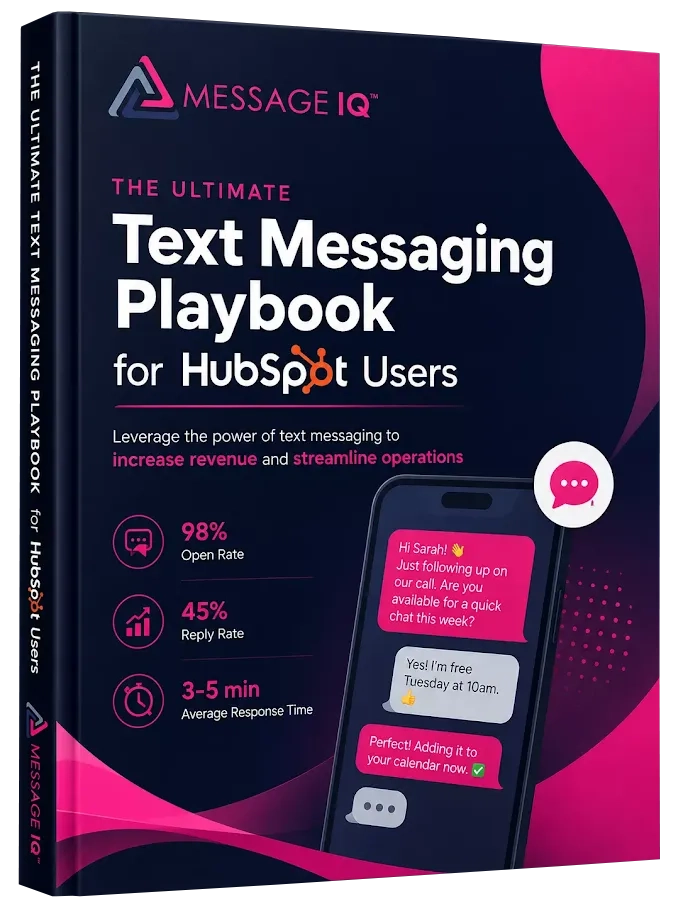
Get Your Ultimate HubSpot Text Messaging Playbook for FREE
Discover how top HubSpot teams use SMS to boost engagement, close deals faster and streamline operations.
Instant download
Expert insights from certified HubSpot professionals
Ultimate Text Messaging Playbook
How to Send Automated Text Messages Compliantly: TCPA and 10DLC
You can’t send automated text messages to customers in the US without explicit written consent. This isn’t optional. Penalties for violations run up to $500 per message for unintentional sends and $1,500 per message for wilful ones.
The three compliance requirements every business needs before they send automated text messages at scale:
1. Written opt-in consent Contacts must agree in writing to receive text messages from your business. That consent needs to be logged with a timestamp and the specific channel and message type they opted into. MessageIQ handles opt-in tracking automatically and syncs consent status to HubSpot contact properties.
2. 10DLC registration All business SMS in the US must go through registered 10-digit long code (10DLC) numbers. Unregistered numbers face carrier filtering: your messages simply don’t deliver. Registration takes 6 to 8 business days through HubSpot’s SMS setup process.
3. Opt-out handling Every automated text message sequence must honour STOP replies immediately and stop all future messages to that contact. MessageIQ’s opt-out management is built into the platform and syncs to HubSpot automatically so your contact records stay accurate.
For the full compliance setup checklist, see our TCPA consent language guide and our A2P 10DLC brand registration walkthrough.
Automated Text Messages vs Email: Which One to Use and When
Both channels belong in a well-run communication strategy. The goal isn’t to pick one. It’s knowing which scenario calls for which channel.
| Scenario | Best Channel | Why |
| Speed-to-lead follow-up | Automated text message | Read within 3 minutes; email often sits for hours |
| Appointment reminder | Automated text message | Higher confirmation rate; easy one-tap reply |
| Long-form content delivery | SMS isn’t suited to multi-paragraph content | |
| Stalled deal nudge | Automated text message | Cuts through inbox clutter at the right moment |
| Monthly newsletter | Appropriate format and length for updates | |
| Urgent service alert | Automated text message | 98% open rate ensures critical messages land |
| Detailed proposal or contract | Document attachment required | |
| Onboarding check-in | SMS first, email to support | Two-way reply keeps the conversation personal |
The teams that convert the most don’t choose between SMS and email. They use both in sequence, with automated text messages handling the time-sensitive touches and email handling the depth.
Two-Way SMS: Why Broadcast Isn’t Enough
Most tools let you send automated text messages in one direction. MessageIQ is two-way by default, meaning every automated SMS you send can receive a reply. That reply lands in a shared team inbox where your sales or support reps can pick up the conversation in real time.
That distinction matters more than most teams realise. A contact who replies to your appointment reminder with a question shouldn’t hit a dead end. A lead who responds to your speed-to-lead text with “yes, let’s talk” shouldn’t wait 24 hours for a human to see it.
MessageIQ’s shared team inbox routes every inbound reply to the right rep automatically. The automated text message starts the conversation. The team closes it. That’s the model that drives results for B2B sales teams.
Frequently Asked Questions
Can I send automated text messages from HubSpot without a developer?
Yes. MessageIQ connects to HubSpot natively through the App Marketplace. Once installed, you can build automated text message workflows directly inside HubSpot’s workflow editor without any coding. The setup takes under 30 minutes for most teams.
What’s the difference between a scheduled text and a triggered automated text message?
A scheduled text sends at a specific date and time you set in advance. A triggered automated text message fires when a contact takes an action or meets a condition in your CRM, like submitting a form or having a deal stage change. Triggered messages are more powerful because they respond to real contact behaviour in real time.
Do I need written consent before I send automated text messages to customers?
Yes, always. Under TCPA regulations, sending automated text messages to customers without explicit written opt-in consent can result in fines of $500 to $1,500 per message. Consent must be documented, tied to a specific message type, and honoured when a contact replies STOP. MessageIQ tracks and syncs consent automatically inside HubSpot.
How many automated text messages should I send in a sequence before stopping?
The optimal range depends on the use case. For lead follow-up, 3 to 5 messages across 7 to 10 days is a reasonable sequence before marking the contact as unresponsive. For onboarding, space automated text messages across 30 days. Always stop if a contact replies STOP, and watch your reply rates. If engagement drops after message 2, shorten the sequence.
Will automated text messages feel impersonal to customers?
Only if they’re written that way. Using HubSpot contact tokens: first name, company, rep name, appointment time, makes each automated text message feel individual even at scale. The goal is a message that looks like it came from a person who knows the contact, not a mass blast. MessageIQ’s merge tag support inside HubSpot workflows makes personalisation the default, not the exception.
What industries benefit most from automated text messaging?
Healthcare teams use automated text messages to cut no-shows with appointment reminders. Real estate agents use them for listing updates and showing confirmations. Auto glass and field service companies send automated text messages for job scheduling updates. Financial advisors use them for appointment follow-ups and policy renewals. Any business that relies on scheduled appointments or time-sensitive customer communication sees immediate lift from SMS automation.
How much does it cost to send automated text messages through MessageIQ?
MessageIQ plans start at $49/mo, which includes HubSpot workflow integration, two-way messaging, and a shared team inbox. Unlike platforms that charge per seat or per message at high rates, MessageIQ is built for teams that need to send automated text messages at scale without enterprise pricing.
See how much revenue SMS could add to your HubSpot stack
Five inputs. Industry-backed benchmarks. Get your projected annual SMS revenue in under 30 seconds.
Calculate My SMS ROI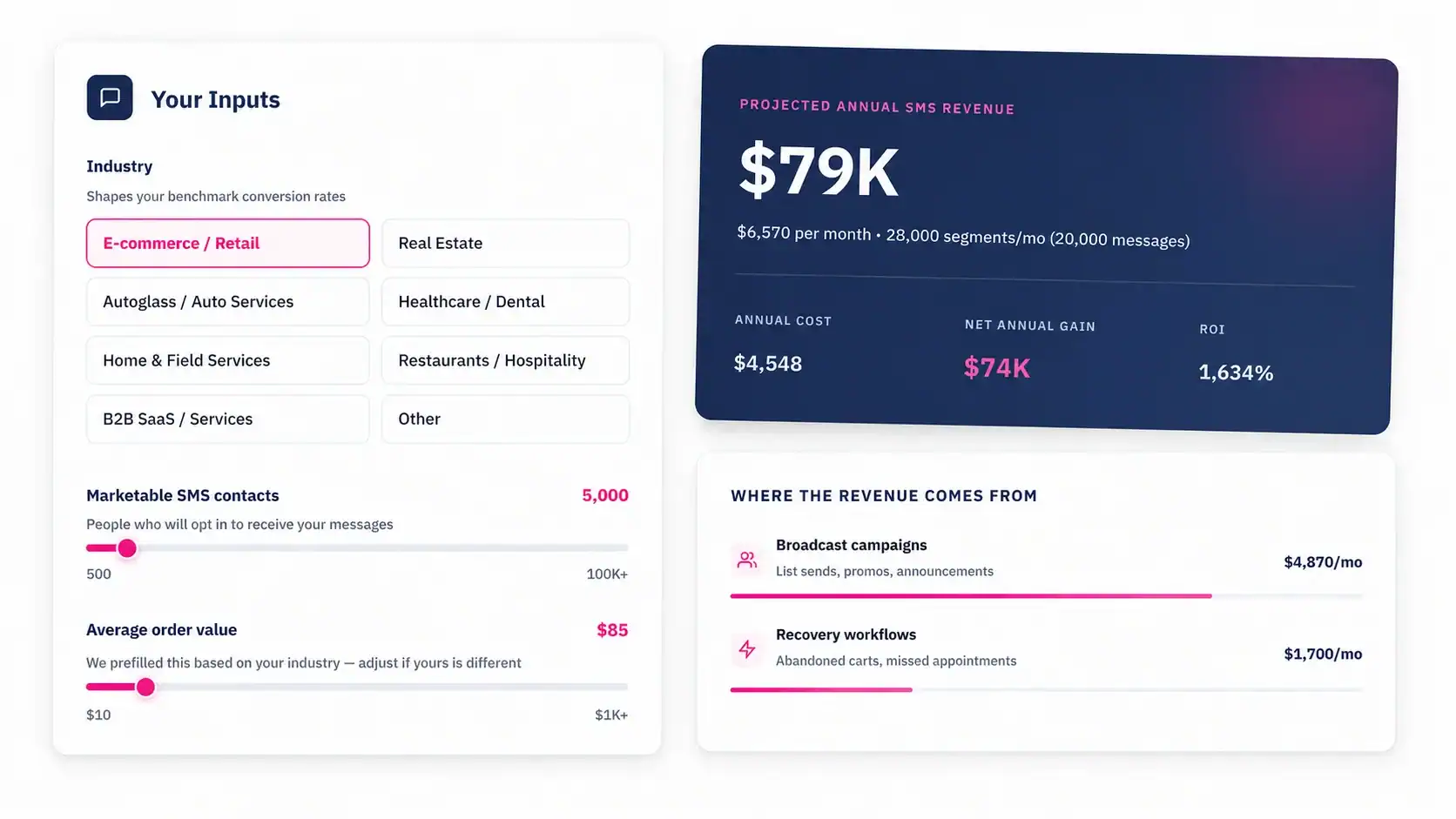
Start Sending Automated Text Messages from HubSpot Today
If your team is still manually following up with leads, typing out appointment reminders one by one, or relying on email alone for time-sensitive outreach, you’re leaving response rate and revenue on the table.
MessageIQ connects directly to your HubSpot workflows so you can send automated text messages from the tools you already use. Set up your first workflow today, starting with a speed-to-lead trigger or an appointment reminder, and have it running before your next meeting.
Plans start at $49/mo. No developer. No Zapier. No switching platforms.
See how MessageIQ works inside HubSpot or explore plans and pricing.