

Managing SMS conversations in HubSpot means connecting your text number to the same Conversations inbox your team already uses for email and chat, so every reply, note, and opt-out lives on the contact record instead of a separate texting app. This guide is for HubSpot users who already have, or are about to connect, an SMS number and want a clean way to organize, route, and log every text a customer sends.
If you’re running sales follow-ups, appointment reminders, or support replies over text, keeping those threads inside HubSpot means the whole team sees the same conversation history without switching tools.
What it means: managing SMS conversations in HubSpot is the process of connecting an SMS number as an inbox channel, then using custom views, routing rules, and contact-level logging to keep every text thread organized and visible to your team.
Most teams get this set up and running in 15 to 20 minutes.

What You’ll Need
- A HubSpot account with the Conversations inbox enabled
- An SMS-enabled number through a HubSpot-compatible provider, such as Message IQ, or HubSpot’s own Marketing SMS Add-On
- Sales Hub or Service Hub Professional or Enterprise if you want SMS tied to deal or ticket records, not just contacts
- Inbox admin permissions, so you can connect a channel and create views
- A documented opt-in process for anyone you plan to text
Get Consent Before You Connect Anything
Before you send a single text, confirm you have express written consent from each contact under TCPA and CAN-SPAM. Build in standard opt-out keywords like STOP, UNSUBSCRIBE, and CANCEL, and make sure your SMS provider writes opt-outs back to a HubSpot contact property automatically. Skipping this step is the fastest way to get a number blocked by carriers before you’ve managed a single conversation. See our full guide to TCPA and CAN-SPAM for SMS marketing for the specifics.
The Step-by-Step Walkthrough
Six steps take you from a disconnected phone number to a fully managed SMS inbox inside HubSpot.
Step 1: Connect Your SMS Number as an Inbox Channel
This is the step that actually puts text messages inside the Conversations inbox instead of a separate app.
Go to Settings (gear icon) → Inbox → Channels → Connect a channel, then choose your SMS provider. If you’re using Message IQ, this is where your IQ Number gets assigned to the inbox.
Name the channel something your team will recognize (“Sales SMS” or “Support SMS”), assign it to the correct inbox, and authorize the connection.
You should see: your SMS number listed under Connected channels in Inbox Settings.
[Screenshot: Inbox Settings screen with Connect a Channel panel open, IQ Number highlighted in the dropdown.]
Step 2: Create a Custom View to Filter SMS Conversations
Without a dedicated view, text threads get buried in a shared inbox next to every email and chat.
From CRM → Inbox, click the Actions dropdown in the bottom left, then Create a view. Under Filter type, choose Conversations properties, set Channel equals your SMS channel, then save the view as “SMS.”
You should see: only SMS threads when that view is selected, everything else filtered out.
[Screenshot: Create a view panel with Conversations properties filter set to Channel = SMS.]
Step 3: Set Up Routing So the Right Rep Sees Each Text
Conversations that sit unassigned get answered late, or twice.
In Inbox Settings → Assignment, turn on round robin or team-based routing for the SMS channel. If a text needs to reassign the deal or ticket owner, build a short workflow that triggers on a new SMS reply and updates the owner property.
You should see: new SMS conversations landing with an assigned owner instead of sitting in the unassigned queue.
Step 4: Reply to and Manage Two-Way Threads From the Inbox
This is where day-to-day management happens.
Open a conversation, type your reply in the message box, and send. Messages go out through your connected number and land back in the same thread when the contact replies. Personalization tokens work in the reply box the same way they do in email.
You should see: your reply and the contact’s response in one continuous thread, timestamped and attached to their contact record.
[Screenshot: Conversation thread with a two-way SMS reply, personalization token visible in the compose box.]
Step 5: Log Notes and Track Every Text on the Contact Record
Reps switching between deals need context without re-reading the whole thread.
While viewing a conversation, add an internal note directly in the thread, or check the Message IQ CRM card on the contact record for a running log of every text sent and received.
You should see: internal notes marked clearly as team-only, and the full SMS history visible from the contact record even outside the inbox.
Step 6: Close, Reopen, and Report on Conversations
Mark a conversation Closed once it’s resolved. If the contact texts again, HubSpot automatically reopens the same thread rather than starting a new one. Use Conversations reporting or an auto-created Active List to track volume and response time by rep.
You should see: closed conversations move out of your open queue, and reopen automatically on a new reply.
Confirm It’s Working Before You Rely On It
Send a test text to your own phone from the connected number. Check that the thread appears in your SMS view, that the message shows on your own contact record, and that replying from your phone triggers a STOP-keyword test to confirm the opt-out property updates correctly. If all three check out, the setup is production-ready.
Get Your Ultimate HubSpot Text Messaging Playbook for FREE
Discover how top HubSpot teams use SMS to boost engagement, close deals faster and streamline operations.
Instant download
Expert insights from certified HubSpot professionals
Ultimate Text Messaging Playbook
Common Problems and Fixes
Problem: New SMS conversations aren’t showing an assigned owner.
Why it happens: assignment rules are configured on the inbox, not on the specific SMS channel, or the routing workflow’s enrollment trigger doesn’t match the channel property.
Fix: open Inbox Settings → Assignment and confirm the SMS channel is included in the rule. If you’re using a workflow, check the enrollment trigger against the actual channel value on the conversation.
Problem: A message shows as sent but the contact says they never received it.
Why it happens: carrier filtering, an unregistered 10DLC number, or a landline number that can’t receive texts.
Fix: check delivery status in your provider’s dashboard. Message IQ’s direct carrier relationships surface delivery failures instead of a generic “sent” status, so you can see exactly where the message stalled.
Problem: A contact replied, but nothing shows up in HubSpot.
Why it happens: the channel connection dropped, or the incoming number doesn’t match any existing contact record.
Fix: reconnect the channel from Inbox Settings, then check whether the phone number field on the contact matches the format the reply came in on (with or without the country code).
Problem: Two reps reply to the same thread within minutes of each other.
Why it happens: no assignment rule is active, so the conversation stayed visible to the whole team as unowned.
Fix: turn on round robin or manual claim-based assignment so a conversation locks to one owner as soon as it’s opened.
Problem: A contact who texted STOP still received a follow-up message.
Why it happens: the opt-out keyword wasn’t mapped to the Message IQ Opt-Out property, or a workflow sent the follow-up without checking that property first.
Fix: confirm the opt-out property is set as a suppression filter on every SMS workflow, and test the STOP keyword again after making the change.
A Few Things That Keep the Inbox Manageable
- Give each team its own SMS view instead of sharing one general queue
- Keep a small library of approved reply templates, see our text message templates for starting points
- Use personalization tokens instead of manually typing names on every reply
- Check delivery and opt-out reports weekly, not just when something breaks
- Close threads once resolved so open-conversation counts stay meaningful for reporting
FAQ
Do I need a separate app to manage SMS conversations in HubSpot?
You need an SMS provider connected as a channel, since HubSpot doesn’t assign phone numbers on its own. Message IQ connects directly, so texts appear in the same Conversations inbox as email and chat without a separate app to check.
What HubSpot plan do I need to manage SMS conversations?
The Conversations inbox itself is available on Free. Routing SMS replies to change deal or ticket ownership through workflows requires Sales Hub or Service Hub Professional or higher.
Can more than one rep work the same SMS inbox?
Yes. Set up round robin or team-based assignment on the SMS channel so conversations route to one owner at a time, which avoids duplicate replies to the same contact.
How are opt-outs logged when managing SMS in HubSpot?
Keywords like STOP or UNSUBSCRIBE should write back to a dedicated HubSpot contact property, such as the Message IQ Opt-Out property, so every workflow and manual send can check it before texting that contact again.
Does the SMS conversation history stay on the contact record?
Yes, once a number is connected as a channel, every inbound and outbound text logs to the contact timeline automatically, the same way logged emails and calls do.
Can I use templates when replying to SMS inside HubSpot?
Yes. Saved reply templates work in the Conversations compose box for SMS the same way they do for email, and personalization tokens pull directly from the contact record.
What does Message IQ cost?
Message IQ starts at $49 a month, month-to-month with no long-term contract, backed by a 30-day money-back guarantee. See full pricing for plan details.
See how much revenue SMS could add to your HubSpot stack
Five inputs. Industry-backed benchmarks. Get your projected annual SMS revenue in under 30 seconds.
Calculate My SMS ROI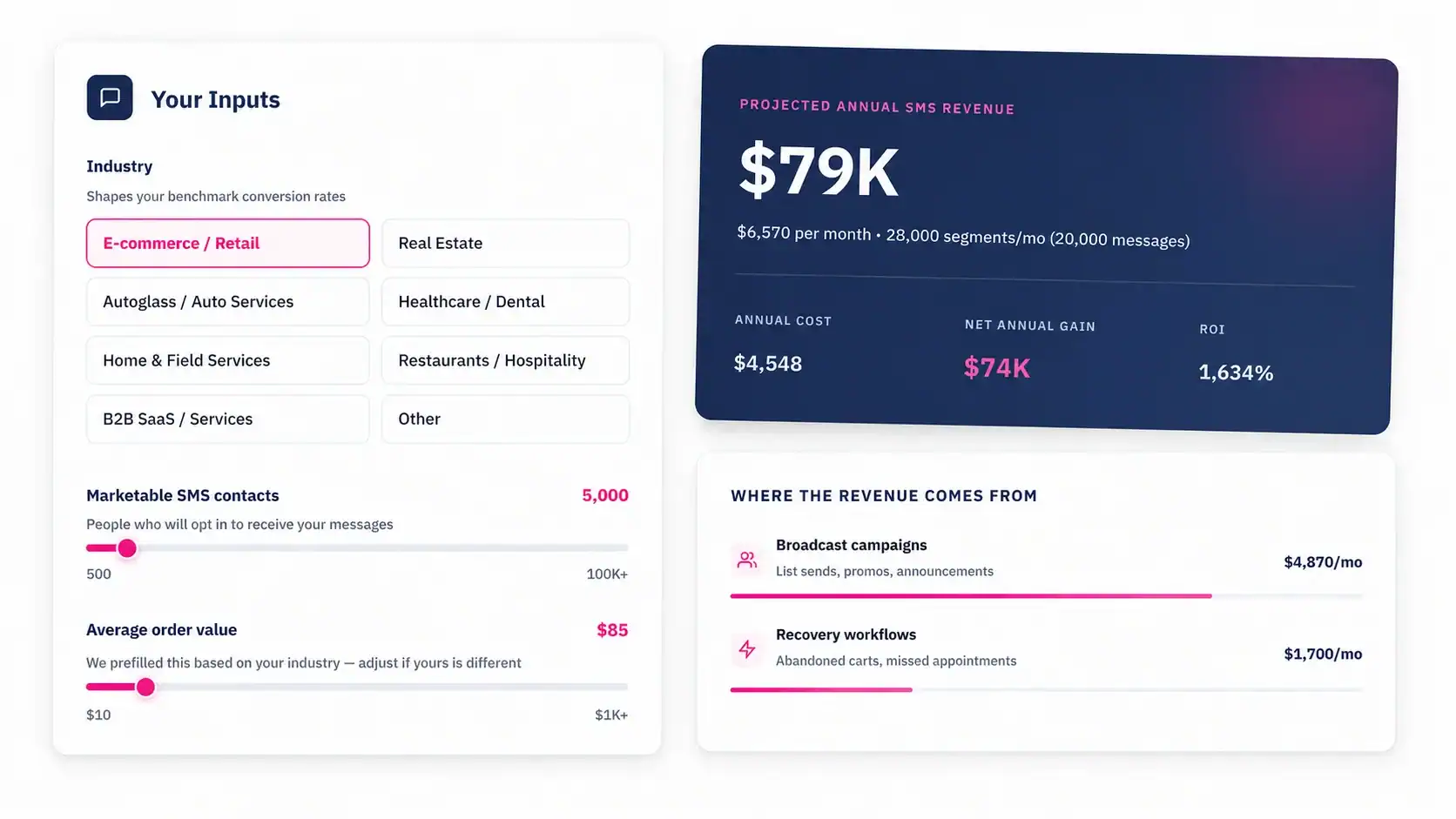
Get Every SMS Conversation Into One Inbox
Once your SMS number is connected, filtered into its own view, and routed to the right rep, managing text conversations in HubSpot stops being a second inbox to check and becomes one more channel your team already knows how to work. Message IQ is built HubSpot-first, with two-way conversations, an auto-created Opt-Out property, and one IQ Number that scales with volume, starting at $49 a month, month-to-month, with a 30-day money-back guarantee, available in the US and Canada. See how Message IQ works inside HubSpot or check pricing to get your number connected.