
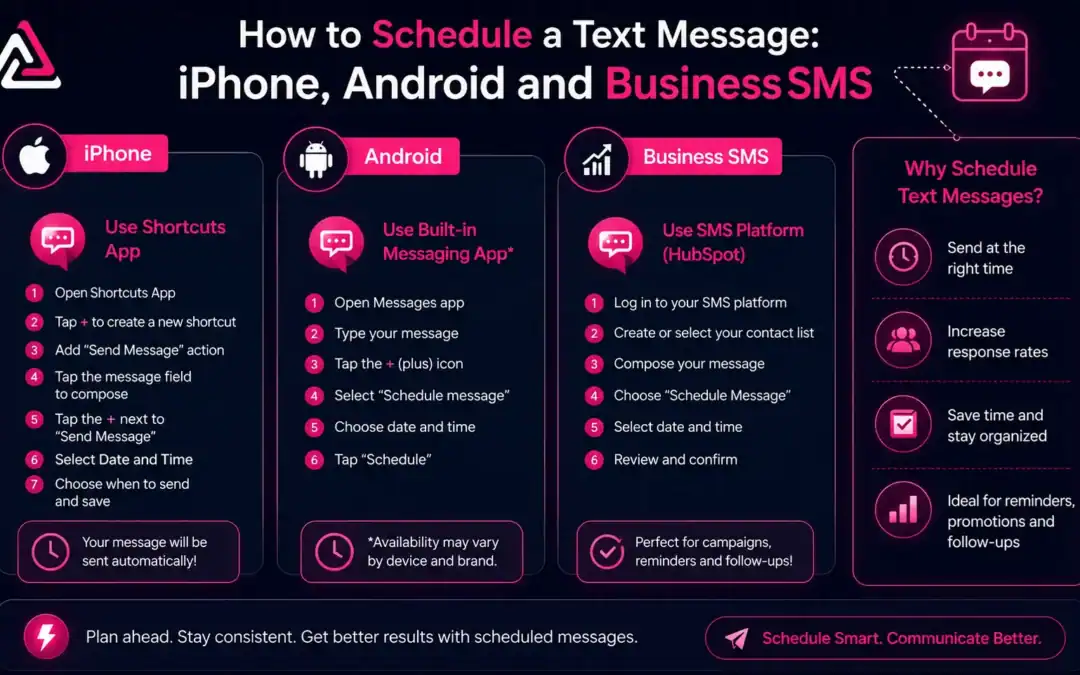
Scheduling a text message on your phone takes about 10 seconds. Scheduling SMS at business scale timed sends to hundreds of opted-in contacts, TCPA-compliant delivery windows, CRM-logged replies takes the right platform wired into your workflow.
This guide covers both. Start with the quick device-level steps for iPhone and Android. Then we get into what actually matters for sales teams, marketers, and ops leads: how to schedule text messages through HubSpot workflows with Message IQ, how TCPA quiet hours affect your send timing, and which scheduling approach fits each use case.
98% of SMS messages get opened vs roughly 20% for email but that stat only works in your favor if the message hits at the right time. Scheduling is how you control that. Message IQ lets HubSpot teams schedule individual texts, triggered automated sends, and bulk campaigns from inside the CRM, with quiet hours enforcement built in so you’re not manually calculating time zones for 800 contacts.
What Is a Scheduled Text Message?
A scheduled text message is a text you write now and set to deliver automatically at a future date and time.
The message gets stored until the send time, then delivered to the recipient as a normal SMS they have no way to tell it was pre-scheduled. Scheduling works for 1:1 personal messages (a birthday text, a work reminder) and for business sends to large contact lists (promotional campaigns, appointment reminders, follow-up sequences).
The mechanics differ depending on whether you’re scheduling from a personal device or a business platform. iOS 18 and Android handle single-recipient scheduling natively. For multi-recipient business sends tied to CRM data, you need an SMS platform like Message IQ that connects to HubSpot and handles scheduling through workflow automation.
How to Schedule a Text Message on iPhone (iOS 18+)
Apple added native message scheduling in iOS 18. If you’re on iOS 18 or later, you don’t need a third-party app it’s built directly into the Messages app.
- Open the Messages app and go to an existing conversation, or start a new one.
- Tap the + icon to the left of the text field.
- Select Send Later from the menu.
- Tap the time field that appears a date and time picker opens. Choose when you want the message to send. You can schedule up to 14 days in advance.
- Type your message in the text field.
- Tap the send arrow. The message bubble appears with a dashed border, and the scheduled send time shows at the top of the conversation.
Important constraints: iOS Send Later only works with iMessage not SMS. Your recipient can use any device, but your phone needs to be an iPhone running iOS 18+. Scheduled messages are stored encrypted on Apple’s servers and deleted after sending. The 14-day limit is firm. For anything beyond 14 days, you’d need a workaround via the Shortcuts app.
How to Reschedule or Cancel on iPhone
Go to the conversation, scroll to the scheduled message at the bottom, tap Edit beside the scheduled time, and choose Edit Time to reschedule or Send Message to send it immediately. You can cancel by deleting the message bubble before it sends.
iOS 13–17: Shortcuts App Workaround
Earlier iOS versions don’t have Send Later. The workaround: open the Shortcuts app, go to Automation, create a New Automation triggered by Time of Day, select the date and time, add a Send Message action, type your message and recipient, and save. Unlike Send Later, Shortcuts automation isn’t capped at 14 days and sends via standard SMS rather than iMessage.
How to Schedule a Text Message on Android
Android scheduling depends on which Messages app you use, but the major ones have it covered natively.
Google Messages (Most Android Phones)
- Open Google Messages and compose your text.
- Don’t tap Send yet. Instead, tap and hold the Send button.
- A Schedule send popup appears. Choose from preset times or tap Pick date and time for a custom window.
- Confirm the time and tap the send button it now shows a small clock icon to indicate the message is scheduled.
If the tap-and-hold option doesn’t appear, the feature hasn’t rolled out to your version yet. Check for a Google Messages update in the Play Store or join the beta program on the Messages product page.
Samsung Messages (Discontinued as of July 2026)
Samsung shut down the Samsung Messages app in the US on July 6, 2026 for devices running Android 12 or newer. If you’re on a Galaxy phone released after that point, including the Galaxy S26 series, Samsung Messages is no longer available and the app can’t send anything except emergency alerts. Use the Google Messages steps above instead – Samsung now sets Google Messages as the default on those devices.
If you’re still on Android 11 or older, Samsung Messages continues to work and the scheduling steps are the same as before: open Samsung Messages and compose your text, tap the left arrow beside the text field to expand options, tap the + button, select Schedule message from the options panel, set your date and time, tap Done, then tap Send.
Why Personal Phone Scheduling Breaks for Business Sends

For one-off personal texts, your phone works fine. The moment you add volume, a team or a CRM, it stops working. Here’s exactly where native phone scheduling falls apart for business use:
- One recipient per scheduled message. iOS and Android both cap you at a single contact (this kind of one-to-many send is sometimes called a “broadcast”). Scheduling 200 appointment reminders means 200 manually created scheduled messages on your personal phone.
- No CRM logging. Nothing about the scheduled send appears in HubSpot, Salesforce or any CRM. Your team has no visibility into what went out or when.
- No shared team access. Only the person who scheduled the message can see it, edit it, or respond if the contact replies. You can’t hand off a conversation.
- No quiet hours enforcement. Send a message at 9:30 PM to a contact in a different time zone and you’ve just violated TCPA, regardless of what the clock says in your office.
- No merge tags or personalization. You manually type each recipient’s name, company, and context. That’s not a workflow that’s data entry.
- No delivery reporting. You can’t see open rates, reply rates, or failures for a batch of individually scheduled texts.
The method table below summarizes when to use each approach:
| Method | Best For | Breaks Down When… |
| iPhone Send Later (iOS 18+) | 1:1 personal messages, up to 14 days out | Sending to more than 1 person, or needing CRM logging |
| Android Schedule Send | 1:1 personal messages, Google/Samsung Messages | Team shared inbox needed, or CRM integration required |
| SMS Platform (e.g., Message IQ) | Business campaigns, bulk scheduling, HubSpot workflows | Nothing built for scale, compliance, and CRM logging |
| HubSpot Workflow Delay | CRM-triggered sends at a specific future date/time | Contact-level personalization at volume without an SMS tool connected |
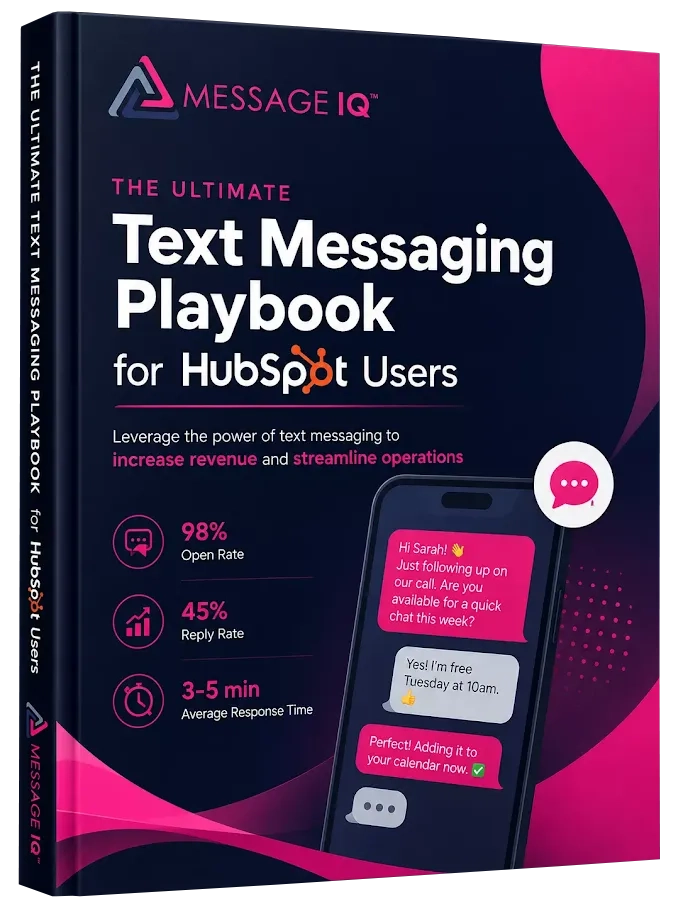
Get Your Ultimate HubSpot Text Messaging Playbook for FREE
Discover how top HubSpot teams use SMS to boost engagement, close deals faster and streamline operations.
Instant download
Expert insights from certified HubSpot professionals
Ultimate Text Messaging Playbook
How to Schedule Text Messages for Business Using Message IQ and HubSpot
Message IQ connects to HubSpot natively it adds a Send SMS action directly into HubSpot’s workflow builder, logs every message on the contact timeline, and routes replies to a shared team inbox. Scheduling works two ways: date-based triggers for specific campaign sends, and delay steps in enrollment workflows for time-sequenced follow-ups.
Method 1: Schedule a Bulk SMS to a HubSpot List
Use this for promotional campaigns, event reminders, or any send to a defined segment of your contact database.
- In HubSpot, go to Automation > Workflows and create a Contact-based workflow.
- Set the enrollment trigger to List membership select the Active List of opted-in contacts you want to reach.
- Set the enrollment timing to a specific date and time. Choose “Center on a date” and enter the exact date of your send. This tells HubSpot to enroll contacts only when that date condition is met.
- Add a Message IQ action: Send SMS. Select your pre-written template. Use {{contact.firstname}} and {{contact.company}} merge tags to personalize each message at send time.
- Set the workflow’s allowed send window to 8 AM–9 PM in the contact’s local time zone (Message IQ auto-enforces quiet hours, but setting it in the workflow adds a second layer of protection).
- Review and turn on the workflow. HubSpot and Message IQ handle the rest each contact gets a personalized, individually delivered SMS at the scheduled time, with the send logged on their contact record.
Method 2: Schedule Time-Delayed Texts in an Enrollment Workflow
Use this for nurture sequences, speed-to-lead follow-ups, or drip campaigns where timing relative to a trigger matters more than a fixed calendar date.
- Create a Contact-based workflow with an enrollment trigger tied to a CRM event form submission, deal stage change, lifecycle stage update, or custom property condition.
- Add a Delay action. Set it to the exact time after enrollment you want the SMS to fire: 10 minutes for a speed-to-lead follow-up, 24 hours for a reminder, 3 days for a re-engagement.
- After the delay, add a Message IQ Send SMS action with your template.
- Add a branch: if the contact replies (Message IQ logs inbound replies as a contact property), route them to an active conversation workflow. If no reply after another delay, send the next message in the sequence.
- Turn on the workflow. New contacts who meet the enrollment trigger get entered automatically, and the scheduled delay means they receive the text exactly when your sequence dictates.
Method 3: Schedule a 1:1 Text from a Contact Record
For sales reps who want to pre-schedule a single follow-up text to a specific contact without building a full workflow:
- Open the contact record in HubSpot.
- Click the Message IQ SMS tab in the right sidebar.
- Compose your message or select a saved template.
- Click the clock/schedule icon instead of Send.
- Choose the date and time for delivery. Message IQ enforces quiet hours automatically if you choose 10 PM, it shifts to 8 AM the next morning.
- Confirm. The scheduled message appears in the contact timeline with a pending status until it is sent.
Scheduled SMS Templates (Copy-Paste Ready)
These work with Message IQ’s template library and HubSpot merge tags. Set them up once and reuse across workflows.
Template 1: Appointment Reminder (24 Hours Before)
Hi {{first_name}}, quick reminder your appointment with {{rep_name}} at {{company}} is tomorrow at {{time}}. Reply YES to confirm or RESCHEDULE to change. Reply STOP to opt out.
Schedule trigger: 24 hours before appointment date property on HubSpot Contact.
Character count: ~150 (single segment)
Template 2: Speed-to-Lead Follow-Up (10 Minutes After Form Fill)
Hey {{first_name}}, saw you checked out {{company}} I’m {{rep_name}}, happy to answer questions. What’s your main challenge right now? Reply anytime. STOP to opt out.
Schedule trigger: Delay 10 minutes after HubSpot form submission with SMS opt-in.
Character count: ~148 (single segment)
Template 3: Campaign Announcement (Specific Date/Time)
{{first_name}}, our Q3 deal closes Friday: 15% off any annual plan. Use code Q3NOW at checkout {{link}}. Questions? Reply here. {{company}}. STOP to unsubscribe.
Schedule trigger: Fixed date workflow, sent Tuesday 11 AM in recipient’s local time zone.
Character count: ~155 (single segment)
Template 4: Post-Demo Follow-Up (Same Day, 2 Hours After)
Hi {{first_name}}, great chatting today. Here’s the recap doc we discussed: {{link}}. Any questions before you loop in the team? Happy to jump on a quick call. STOP to opt out.
Schedule trigger: Deal stage moves to ‘Demo Completed’ delay 2 hours, then send.
Character count: ~158 (single segment)
Template 5: Re-Engagement (60-Day Dormant Contacts)
Hey {{first_name}}, it’s {{rep_name}} from {{company}}. Haven’t connected in a while still trying to solve [pain point]? Worth a 10-min call. Book here: {{link}}. STOP to opt out.
Schedule trigger: Last Activity Date > 60 days, Lifecycle Stage = Lead, SMS Opt-In = true.
Character count: ~155 (single segment)
TCPA Quiet Hours and Scheduled Text Timing
Scheduling a text for 9:30 PM to a contact in California is a TCPA violation even if you have written consent. The Telephone Consumer Protection Act prohibits marketing messages before 8 AM and after 9 PM in the recipient’s local time zone. Violations run $500 to $1,500 per message per recipient, and class-action litigators actively scrape message timestamps to build cases.
State-level mini-TCPA laws add another layer. Florida, Connecticut, Maryland, Oklahoma, and Washington have stricter restrictions than the federal standard. Texas’s SB 140 (effective September 2025) explicitly expanded the definition of ‘telephone solicitations’ to include text messages, closing a loophole some marketers previously relied on.
Here’s how send timing maps to compliance risk and engagement performance:
| Send Window | Open Rate Lift | Reply Rate | TCPA Status |
| 6–8 AM (before quiet hours) | Below average | Low | Risk zone avoid |
| 8–10 AM | Average | Moderate | Compliant |
| 11 AM–2 PM | Above average | High | Compliant peak window |
| 5–7 PM | Above average | High | Compliant second peak |
| 7–9 PM | Average | Moderate | Compliant but tapering |
| After 9 PM | Low | Very low | TCPA violation blocked |
Practical rule for nationwide campaigns: Schedule sends between 11 AM and 7 PM Eastern to stay inside the TCPA window for all US time zones simultaneously. An 11 AM Eastern send lands at 8 AM Pacific right at the compliant window’s edge. A 7 PM Eastern send is 4 PM Pacific well inside the window.
Message IQ enforces quiet hours automatically based on the contact’s area code. If a scheduled message is set to deliver at 9:45 PM local time, Message IQ holds it and delivers at 8:00 AM the next morning no manual time zone math required. Opt-outs also get processed in real time, so a contact who texts STOP overnight gets removed before the morning batch fires.
Frequently Asked Questions
Can I schedule a text on iPhone to someone who doesn’t have an iPhone?
Yes. iOS 18’s Send Later feature uses iMessage on your end, but your recipient can use any device Android, older iPhone, any phone that receives SMS. They won’t know the message was scheduled. The 14-day scheduling limit still applies, and your iPhone needs to be connected to the internet for the message to send.
Can I schedule a text message in HubSpot without a third-party tool?
HubSpot workflows can delay sends using date-based triggers, which effectively schedules a message for a future time. But HubSpot doesn’t include native SMS you need an integrated SMS platform to actually send the text. Message IQ adds a native Send SMS workflow action to HubSpot so delay steps translate directly into scheduled SMS delivery.
Does scheduling a text message affect TCPA compliance?
Yes, timing is a TCPA factor regardless of consent. Even with written express consent, marketing texts can’t land before 8 AM or after 9 PM in the recipient’s local time zone. Scheduling a message for the wrong time window in a contact’s time zone creates compliance exposure. Business SMS platforms like Message IQ handle quiet hours enforcement automatically, holding messages outside the window and delivering them when the window opens.
How far in advance can I schedule a text message?
On iPhone (iOS 18+), the limit is 14 days. On Android via Google Messages or Samsung Messages, limits vary but are typically similar. Using a business SMS platform removes the cap entirely you can schedule a campaign send weeks or months out, and the platform handles delivery when the date arrives. HubSpot workflows with date-based enrollment triggers work the same way.
What’s the best time to schedule a business text message?
The peak engagement windows for business SMS are 11 AM–2 PM and 5–7 PM in the recipient’s local time zone. These windows see the highest open and reply rates while staying well inside the TCPA-compliant 8 AM–9 PM sending window. For nationwide campaigns where you can’t segment by time zone, scheduling for 11 AM–3 PM Eastern covers all US time zones safely.
Can I schedule a text to go to multiple people at once?
Not from a personal phone both iPhone and Android schedule one text to one recipient at a time. For multi-recipient scheduled sends, you need a business SMS platform. Message IQ lets you schedule a campaign to an entire HubSpot list, with each contact receiving a personalized individual message at the scheduled time. Replies land in a shared team inbox rather than your personal phone.
What happens if a contact opts out before a scheduled text sends?
With Message IQ, opt-outs update the contact’s SMS Opt-In property in HubSpot in real time. Any scheduled send or active workflow checks opt-in status before firing contacts who replied STOP get excluded automatically, even if they opted out after you scheduled the campaign. This prevents delivering a message to someone who revoked consent between when you scheduled and when it sends.
See how much revenue SMS could add to your HubSpot stack
Five inputs. Industry-backed benchmarks. Get your projected annual SMS revenue in under 30 seconds.
Calculate My SMS ROI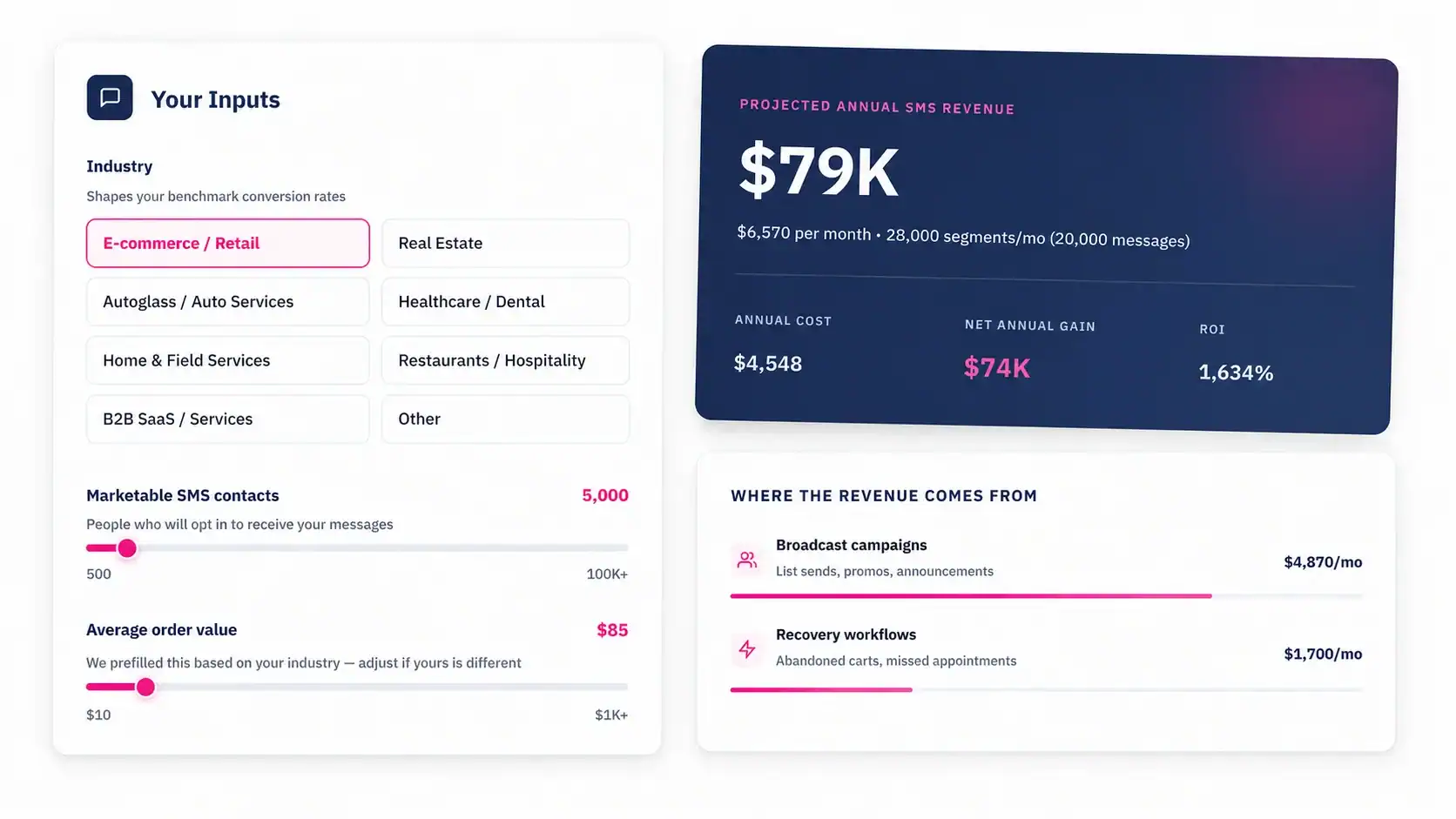
Schedule Your First Business Text Workflow
Personal phone scheduling is fine for a birthday text or a one-off reminder. For sales follow-ups, appointment reminders, campaigns to opted-in lists, and anything where you need CRM visibility and compliance coverage, you need a platform built for it.
Message IQ gives HubSpot teams scheduled SMS inside the workflow builder date-triggered campaigns, delay-based sequences, 1:1 scheduled texts from contact records, and automatic quiet hours enforcement. Every send logs on the HubSpot contact timeline. Replies route to a shared team inbox. Plans start at $49/month.
Your first scheduled workflow a speed-to-lead text that fires 10 minutes after a form fill takes about 15 minutes to set up. Most teams see a measurable lift in response rate within the first week.