

How to Set Up an Auto Reply for iPhone Text Messages Using Message IQ and HubSpot Workflows
Setting up an auto reply for iPhone text messages allows businesses to engage customers instantly, even outside regular hours. With Message IQ and HubSpot workflows, automating SMS replies can be seamless and customer-friendly. Here’s a step-by-step guide to help you get started.
Step 1: Set Up Message IQ for SMS Functionality
Start by setting up your SMS capabilities in Message IQ. This platform enables you to send and receive automated texts through HubSpot workflows to iPhone and Android users. Once Message IQ is set up and linked to your HubSpot account (it’s a single button click), you’ll be able to manage responses automatically. Learn more about Message IQ’s SMS integration here.
Step 2: Create a HubSpot Workflow
Next, head over to HubSpot to create a workflow that will trigger your auto-replies. HubSpot workflows allow you to set specific triggers, such as form submissions or customer inquiries, to automatically send a message via Message IQ. Check out HubSpot’s guide on creating workflows to get started. HubSpot Professional or above is required to create workflows.
Step 3: Choose a Trigger and Action
Choose the trigger that will activate the auto-reply. For example, select “Form Submission” as a trigger and connect it to an “If/Then” action in your workflow. This step ensures that only specific events prompt an auto-reply. For more details, see HubSpot’s trigger-based workflows guide.
Get Your Ultimate HubSpot Text Messaging Playbook for FREE
Discover how top HubSpot teams use SMS to boost engagement, close deals faster and streamline operations.
Instant download
Expert insights from certified HubSpot professionals
Ultimate Text Messaging Playbook

Step 4: Write Your Auto-Reply Message
Craft a concise, friendly auto-reply message, such as, “Thanks for reaching out! We’ll get back to you shortly.” Include any pertinent information like response times or helpful resources to set expectations.
Step 5: Test Your Workflow
Before going live, test the workflow to make sure the auto-reply triggers correctly. Testing ensures your message reaches customers exactly as intended.
By setting up an auto reply for iPhone text messages with Message IQ and HubSpot workflows, your business can provide instant responses that enhance customer satisfaction.
This approach to SMS automation saves time and ensures prompt engagement with your audience, all while maintaining a personal touch.
See how much revenue SMS could add to your HubSpot stack
Five inputs. Industry-backed benchmarks. Get your projected annual SMS revenue in under 30 seconds.
Calculate My SMS ROI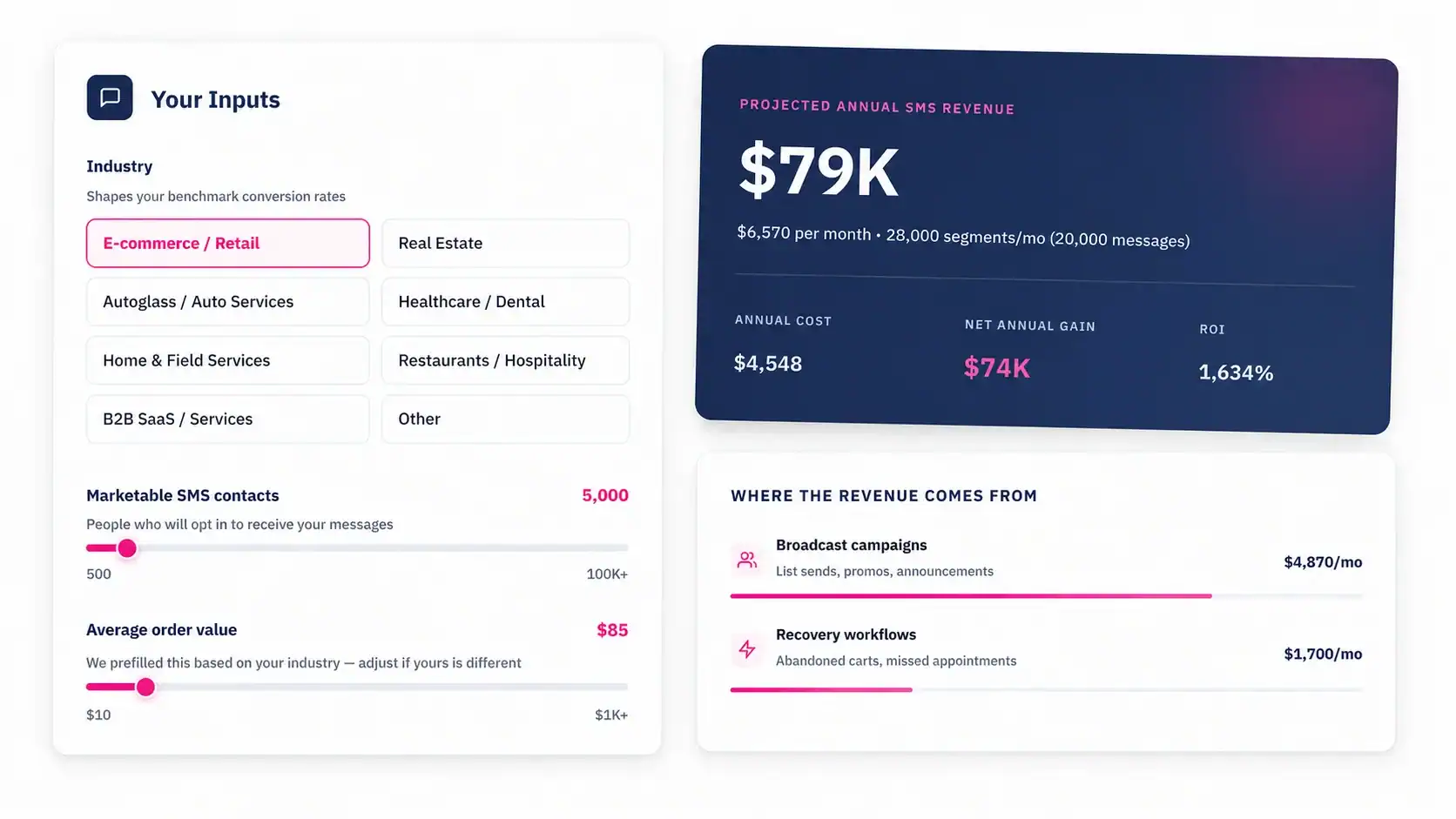
Message IQ: Your All-in-One SMS Solution
With Message IQ, you can:
- Automate HubSpot workflows to streamline communication and improve response times.
- Centralize all your SMS conversations in one user-friendly platform PLUS effortlessly capture all messages on the recipient’s HubSpot Contact record.
- Send and receive SMS messages from HubSpot or the Message IQ app.
- Collaborate with your team by assigning conversations and keeping track of message history.
- Gain valuable insights with built-in analytics and reporting tools.
Ready to take your SMS communication to the next level? Sign up for a $49/mo Message IQ plan today and experience the benefits of native browser notifications for yourself. There is no ongoing obligation.