
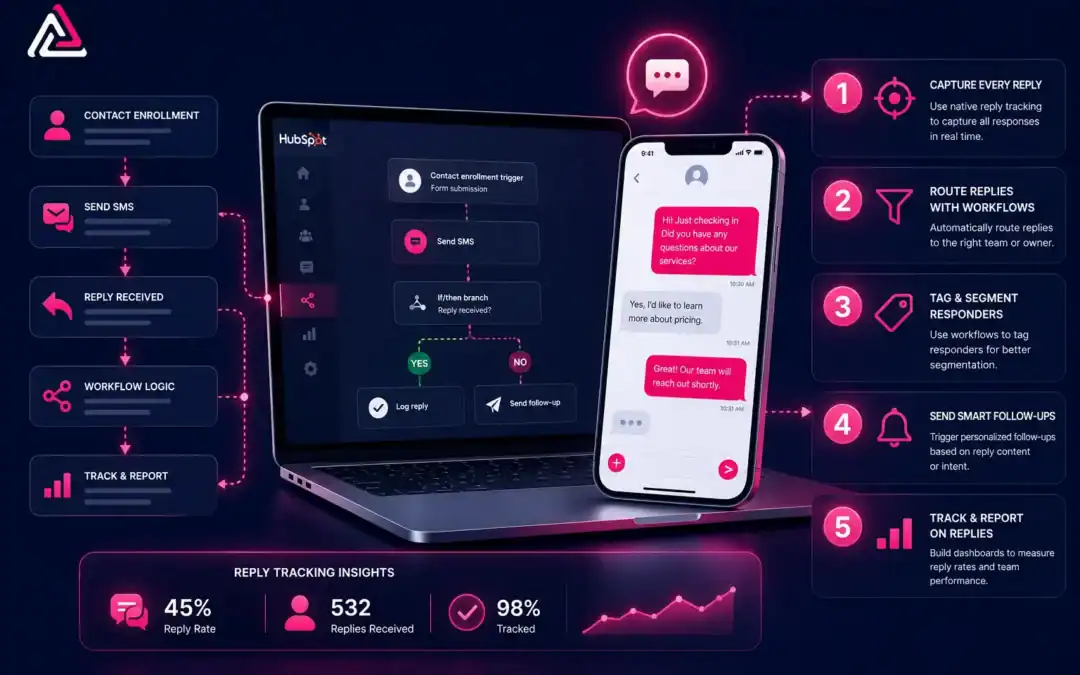
Most HubSpot teams send SMS campaigns and then wonder why reply data is patchy. They check the contact record, find nothing logged, and assume the contact ignored them. Often the contact replied – the workflow just wasn’t built to catch it.
Reply tracking HubSpot SMS campaigns isn’t automatic. It takes deliberate workflow architecture to capture inbound replies, route them correctly, update contact properties, and trigger follow-up actions based on what contacts actually say. MessageIQ, built by HubSpot Diamond Solutions Partners at IntegrateIQ, was designed with two-way SMS as the default – meaning every message you send can receive a tracked reply, right inside your CRM.
This guide covers five specific workflow improvements that turn your SMS campaigns from one-way broadcasts into fully tracked, reply-responsive conversations.
What Is Reply Tracking in HubSpot SMS?
Reply tracking in HubSpot SMS is the process of capturing inbound text responses from contacts, logging them to the contact timeline, and using those replies to trigger workflow actions inside HubSpot. Without active reply tracking, outbound messages fire into a void – you have no data on who responded, what they said, or what action to take next.
Effective reply tracking connects your SMS channel to HubSpot contact properties, conversation inboxes, and enrollment logic so that every reply becomes a usable CRM data point.
See how much revenue SMS could add to your HubSpot stack
Five inputs. Industry-backed benchmarks. Get your projected annual SMS revenue in under 30 seconds.
Calculate My SMS ROI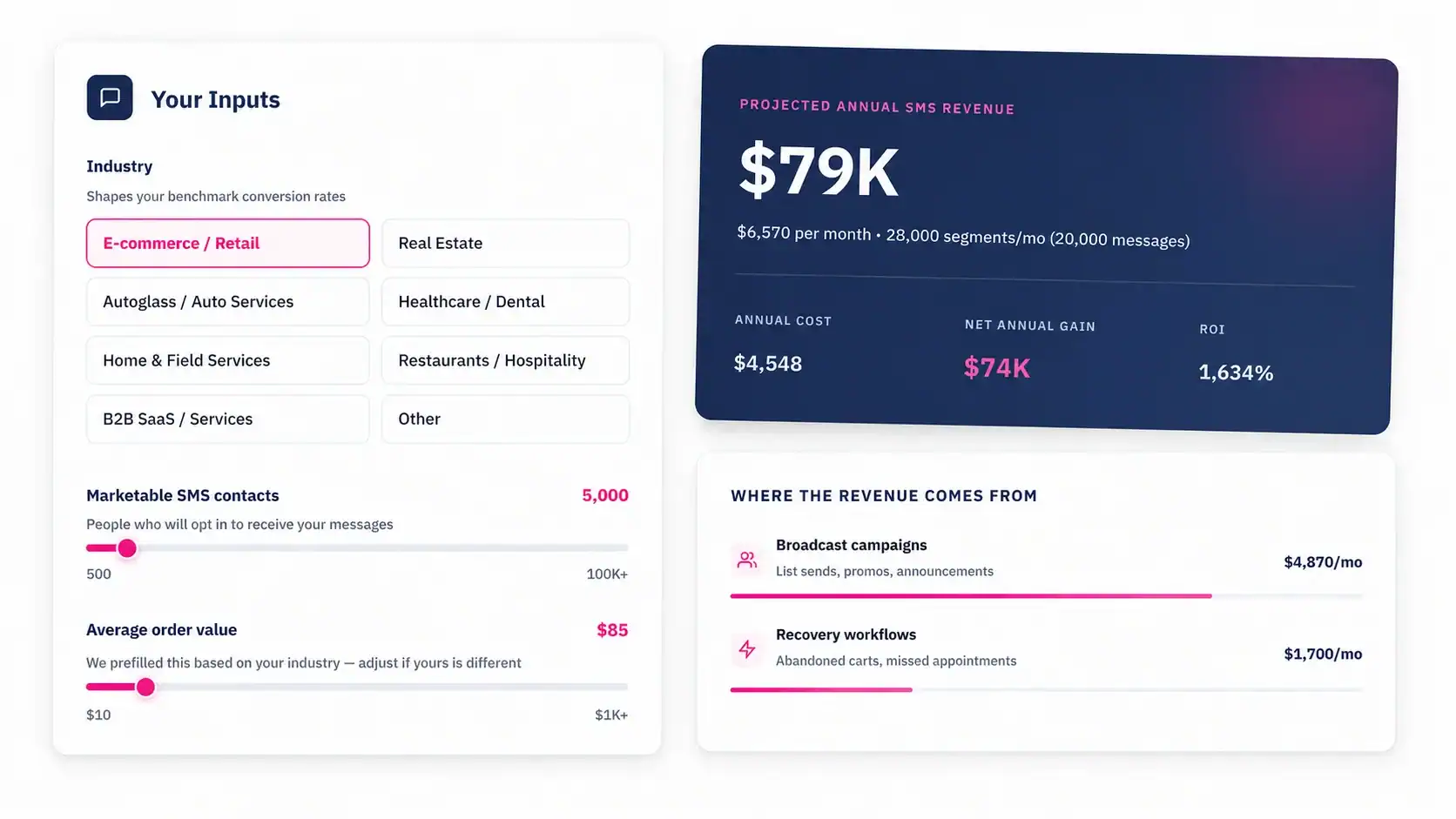
Why Reply Tracking HubSpot SMS Workflows Fail (And What to Fix)
Before the five improvements, it helps to understand what breaks. Most teams hit one of three problems:
- Inbox not connected. HubSpot’s native SMS requires the sending phone number to be connected to a conversations inbox. If you skip that step, replies have nowhere to land.
- Workflow checks too early. A workflow that checks for a reply keyword five seconds after sending the message will always fail – the contact hasn’t had time to respond.
- No property update on reply. If a contact’s reply doesn’t update a custom contact property, you can’t use it as a branch condition downstream.
Setting up SMS automation in HubSpot the right way solves all three. The five improvements below build on that foundation.
1. Use Reply-Based Enrollment Triggers to Activate Follow-Up Sequences
The most common mistake in reply tracking HubSpot SMS campaigns is treating the reply as an endpoint rather than a starting point. A contact replies “Yes” to your appointment confirmation text – and nothing happens. No follow-up. No record update. No next step.
Fix this by building a second workflow that enrolls contacts specifically when a reply is received. Here’s how to structure it:
- Enrollment trigger: Contact’s SMS reply property is known (or a custom property like “Last SMS Reply” is populated)
- Branch logic: If reply contains “yes” or “confirm” → enroll in appointment confirmation sequence | If reply contains “no” or “cancel” → enroll in re-engagement sequence | If reply contains “stop” → immediately update contact property to “SMS Opted Out”
- Action: MessageIQ logs the reply to the contact timeline and fires the appropriate downstream workflow
- Delay: Add a 15-minute wait before any follow-up SMS to avoid message stacking
The key is that the reply itself becomes the enrollment trigger for the next workflow, not a timer or a date. This means your reply tracking HubSpot SMS setup responds to actual contact behavior rather than assumed behavior.
For teams running sales follow-ups, this pairs directly with two-way SMS strategies for sales teams where reply speed determines conversion rates.
2. Build Keyword Branch Logic to Segment Replies Automatically
Not all replies mean the same thing. “Yes,” “Info,” “Help,” “Stop,” and “When?” all require different responses. Generic reply handling – logging the message and moving on – misses the real value of reply tracking HubSpot SMS data.
Keyword branch logic lets you route contacts based on what they actually type. Set up your workflow like this:
- Enrollment trigger: Contact sends an inbound SMS (captured via MessageIQ’s two-way inbox)
- Branch 1: If reply contains “help” → assign conversation to support queue and send: “Got it, {{first_name}}. A team member will follow up within the hour.”
- Branch 2: If reply contains “price” or “cost” → send pricing SMS with link + notify assigned rep
- Branch 3: If reply contains “yes” or “book” → send calendar booking link via SMS
- Branch 4: If reply contains “stop” → update “SMS Subscription Status” property to “Opted Out” and unenroll from all SMS workflows immediately
- Default branch: Reply logged to timeline, conversation assigned to inbox for manual review
The trick with keyword conditions in HubSpot is to use “contains” rather than “is exactly.” People type “Yep,” “yeah,” “YES,” and “yes please.” “Contains” catches all variations; “is exactly” catches almost none.
This is where reply tracking HubSpot SMS shifts from passive logging to active CRM intelligence. Every reply tells you something – keyword logic makes sure that signal doesn’t get wasted.
3. Update Contact Properties on Every Reply to Enable Reporting
Here’s a problem that almost every HubSpot team runs into: SMS campaigns show delivery data, but reply rate reports are empty or require manual exports. The reason is usually that reply events get logged to the contact timeline as activity records, but no contact property ever gets updated.
HubSpot reports run on contact properties, not activity logs. If you want to build a dashboard that shows SMS reply rate by campaign, by rep, or by list segment, you need workflow actions that write reply data to contact-level properties.
Set up these custom contact properties in HubSpot:
- Last SMS Reply Date (date property)
- Last SMS Reply Content (single-line text property)
- SMS Reply Status (dropdown: Replied, No Reply, Opted Out, Pending)
- SMS Campaign Source (single-line text – populated when the outbound message fires)
Then, in every SMS campaign workflow, add a property-update action that fires when a reply is detected:
- Enrollment trigger: Inbound SMS received from contact
- Action 1: Set “Last SMS Reply Date” to today
- Action 2: Set “SMS Reply Status” to “Replied”
- Action 3: Copy reply content to “Last SMS Reply Content” (via MessageIQ’s HubSpot property sync)
- Action 4: Enroll in keyword branch workflow (see Way 2 above)
With properties populated, you can now build HubSpot custom reports on reply rate by campaign, filter contacts by reply status for retargeting, and set lead scores based on SMS engagement. This is what separates teams that do reply tracking HubSpot SMS properly from those who just log events and hope.
For a step-by-step on building SMS segments from this property data, see how to build SMS segments in HubSpot.
4. Add Delay Steps Before Keyword Checks to Catch Late Replies
This is the most overlooked technical fix in reply tracking HubSpot SMS workflows, and it causes more false negatives than almost anything else.
When a workflow sends an SMS and immediately checks whether the contact replied with a keyword, it will almost always hit the “no reply” branch – because the contact hasn’t had time to read the message, let alone respond. This is especially true for bulk campaigns sent to cold or warm lists.
The fix is simple: add a delay step between the outbound SMS action and the keyword check.
Here’s the updated workflow structure:
- Enrollment trigger: Contact meets campaign criteria (e.g., “Deal Stage is Proposal Sent” and “SMS Subscription Status is Subscribed”)
- Action: MessageIQ sends outbound SMS via HubSpot workflow action
- Delay: Wait 30 minutes (adjust based on your audience’s typical response time)
- Branch: Check contact property “SMS Reply Status”
- If “Replied” → route to keyword branch logic workflow
- If not “Replied” → wait 24 hours → send follow-up SMS → check again
- Timeout: After 72 hours with no reply, set “SMS Reply Status” to “No Reply” and unenroll
The delay window depends on your use case. Appointment reminders sent 24 hours before a visit typically get replies within 2 hours. Cold outreach may need a 4-hour window. SMS campaign examples in HubSpot show how timing directly affects reply tracking accuracy.
98% of SMS messages are opened within 3 minutes of delivery, compared to roughly 20% for email – which means most replies come fast. A 30-minute delay catches the fast responders. A 24-hour fallback catches everyone else.

Turn HubSpot Into A Real-Time SMS Engine with Message IQ
 Two-Way Conversations
 Shared Team Inbox
 Automation Triggers
 Advanced Reporting
 Compliance Tools
- 98% SMS read within 3 min
- 78% Buy from first responder
- 21× More likely to qualify

*MessageIQ is an Integrate IQ product built natively for HubSpot by the same team.
5. Connect Your SMS Inbox to HubSpot Conversations for Manual Reply Visibility
Automated reply tracking HubSpot SMS workflows handle the majority of responses – but some replies don’t fit a keyword pattern and need human review. Without an inbox connection, those conversations disappear.
MessageIQ‘s shared team inbox connects directly to HubSpot’s conversations tool. Every inbound SMS, including replies to campaigns, appears as a conversation thread attached to the contact record. Sales reps, support agents, and marketing teams can all see the full exchange without switching platforms.
Set this up in HubSpot by:
- Enrolling trigger: Any inbound SMS that doesn’t match a keyword branch condition
- Action: Assign conversation to inbox (e.g., “SMS Support Queue” or “Sales Inbox”)
- Action: Create a HubSpot task assigned to the contact owner: “Review SMS reply from {{first_name}}”
- Action: Send internal Slack notification (if Slack is connected) with contact name and reply snippet
- SLA step: If conversation remains unassigned for 2 hours, escalate to team manager via HubSpot task
The inbox view also lets you filter conversations by SMS source, reply status, and date – which feeds directly into campaign reporting. This closes the loop on reply tracking: automated workflows handle known keywords; the inbox handles everything else.
Combined with powerful SMS follow-up strategies, inbox-based reply management means no inbound message goes unread or unlogged.
SMS Templates for Reply-Based Workflows
Use these templates in your reply tracking HubSpot SMS workflows. All are compliant and designed to generate replies, not just deliver messages.
Use case: Initial outreach with reply prompt
“Hi {{first_name}}, this is {{rep_name}} from {{company}}. Quick question about your [product/service] – reply YES if you’d like details or NO if now isn’t a good time. Reply STOP to unsubscribe.” (175 chars)
Use case: Keyword-triggered follow-up after “YES” reply
“Great, {{first_name}}! Here’s the link to book a 15-minute call: [link]. Or just reply with a time that works and we’ll set it up. – {{rep_name}}” (148 chars)
Use case: 24-hour no-reply follow-up
“Hey {{first_name}}, following up on our message yesterday. If you have questions or want to talk options, just reply here. We read every message. – {{rep_name}}” (162 chars)
Use case: Appointment confirmation with reply tracking
“Hi {{first_name}}, confirming your appointment on [date] at [time]. Reply YES to confirm or CANCEL to reschedule. Need help? Reply HELP.” (137 chars)
Reply Tracking HubSpot SMS vs Email: Which Gives Better Engagement Data?
| Factor | Reply Tracking HubSpot SMS | Email Reply Tracking |
| Open rate | 98% within 3 minutes | ~20% average |
| Reply rate (typical) | 25–35% | 1–5% |
| Reply logged automatically | Yes (with inbox connected) | Yes (with inbox connected) |
| Keyword branch logic | Available via workflow property check | Not natively available |
| Property update on reply | Available with SMS tools like MessageIQ | Available natively |
| Compliance overhead | TCPA, 10DLC A2P registration | CAN-SPAM |
| Two-way conversation | Built into SMS by default | Requires connected inbox |
For campaigns where reply data drives sales decisions, SMS consistently outperforms email on speed and volume of responses. Full comparison in HubSpot SMS vs email.
TCPA Compliance and Reply Tracking
Reply tracking HubSpot SMS workflows must handle opt-out replies correctly – every time, without exception. Under the Telephone Consumer Protection Act (TCPA), a contact who replies “STOP” must be removed from your SMS send list immediately and must not receive another message until they re-opt in.
MessageIQ has TCPA-compliant opt-in and opt-out handling built directly into the platform. When a contact replies STOP, UNSUBSCRIBE, QUIT, or CANCEL, the system automatically updates their subscription status in HubSpot and removes them from active SMS workflows. No manual step required.
Your workflow should also include:
- A keyword branch that checks for opt-out terms before any other keyword condition
- A contact property update that sets “SMS Subscription Status” to “Opted Out” on opt-out detection
- A re-enrollment block that prevents opted-out contacts from entering new SMS workflows
For the complete TCPA language requirements and consent collection guidance, see our TCPA consent language for SMS guide. If you haven’t registered your number for A2P 10DLC, that’s required before any campaign-level SMS send – details at A2P 10DLC brand registration.
Frequently Asked Questions
What is reply tracking in HubSpot SMS campaigns?
Reply tracking in HubSpot SMS campaigns means capturing inbound text responses from contacts, logging them to the contact timeline, and using those replies as triggers or data inputs for downstream workflows. It requires a connected SMS inbox and correctly built workflow logic to function reliably. Without it, replies exist but never influence your CRM data or follow-up actions.
How do I track SMS replies inside HubSpot workflows?
To track SMS replies in HubSpot workflows, connect your SMS sending number to a HubSpot conversations inbox, then build a workflow that monitors a custom contact property (like “SMS Reply Status”) updated when a reply arrives. MessageIQ syncs reply data directly to contact properties, making those values available as branch conditions inside any HubSpot workflow.
Why isn’t my HubSpot SMS reply tracking picking up keyword responses?
The most common reason is that the workflow checks for the keyword before the contact has had time to reply. Add a 15 to 30-minute delay step between the outbound SMS action and the keyword condition check. Also confirm your keyword condition uses “contains” rather than “is exactly” to handle variations in how people type responses.
Does reply tracking HubSpot SMS work for bulk campaigns?
Yes, reply tracking works for bulk SMS campaigns, but it requires your SMS tool to support two-way messaging on the sending number – not all tools do. MessageIQ supports two-way SMS by default on every number. Each contact’s reply is logged individually to their contact record, and property updates fire per-contact, so bulk sends and tracked replies can run in parallel without conflict.
Is reply tracking in HubSpot SMS TCPA compliant?
Reply tracking itself is compliant, but your handling of opt-out replies must be. Any contact who replies STOP must be removed from your send list immediately. MessageIQ automates this – opt-out replies trigger an instant subscription status update in HubSpot and block the contact from future SMS workflow enrollments. Always combine reply tracking with proper consent collection and 10DLC registration before sending at campaign scale.
Can I report on SMS reply rates in HubSpot?
Yes, but only if you’ve built contact properties that get updated on each reply. HubSpot’s native reports run on contact properties, not activity logs. Set up properties like “SMS Reply Status,” “Last SMS Reply Date,” and “SMS Campaign Source,” then build custom reports filtered on those fields. MessageIQ’s HubSpot sync populates these properties automatically when replies come in.
Get 300+ SMS Templates
Enter your details to download the PDF instantly.
Download Started!
Your 300+ SMS Templates PDF is downloading now. If it didn’t start, click here.
Stop Guessing Whether Contacts Replied
If your reply tracking HubSpot SMS setup relies on checking the contact timeline manually, you’re already behind. Every missed reply is a missed conversation – and in most sales and service cycles, the contact who replies first gets the fastest response.
The five workflow improvements above give you the architecture to capture every reply, route it to the right branch, update the right properties, and fire the right follow-up – automatically.
MessageIQ connects to your HubSpot in under 10 minutes, and every plan includes two-way SMS, shared inbox, and native workflow integration. Plans start at $29/mo. See how it works at messageiq.io.