

Your HubSpot workflows are set up. Your contacts have phone numbers. You hit send. Nothing gets through. If your HubSpot text messages are not delivering, the problem almost always comes down to one of four root causes: unregistered or rejected 10DLC campaigns, missing contact opt-in consent, incorrectly formatted phone numbers, or quiet hours restrictions blocking sends. This guide walks through each one and tells you exactly how to fix it.
MessageIQ, built by HubSpot Diamond Solutions Partners at IntegrateIQ, handles two-way SMS natively inside HubSpot workflows. We troubleshoot these delivery failures regularly, and the patterns are consistent enough that a structured checklist clears most of them in under an hour.
What Does “HubSpot Text Messages Not Delivering” Actually Mean?
When HubSpot text messages are not delivering, it means your messages left HubSpot’s system but failed to reach the recipient’s handset, or they never left HubSpot at all. These are two separate problems with different fixes.
HubSpot tracks this in Marketing > SMS under the Recipients tab. Each send event shows a status: Delivered, Not Delivered, or Not Sent. When you click the expand icon on a contact’s row, HubSpot displays the failure reason if one is available. The most common reasons listed are “recipient unavailable,” “phone number does not exist,” and “contact not subscribed.” Each of those points to a specific technical cause.
The 4 Root Causes When HubSpot Text Messages Are Not Delivering
1. Your 10DLC Campaign Is Unregistered or Rejected
This is the most common and most damaging cause of HubSpot SMS delivery failure in 2026. Every business sending A2P (application-to-person) text messages from a 10-digit long code number must register their brand and campaign with The Campaign Registry before sending. If you skip this step, or if your registration gets rejected, carriers filter your messages at the network level. They don’t bounce them back with an error. They just silently drop them.
HubSpot routes SMS through Twilio’s infrastructure, and Twilio treats all HubSpot traffic as A2P. That means 10DLC registration is mandatory, not optional.
Why 10DLC registrations get rejected:
The most common rejection reason, according to HubSpot’s messaging team, is missing or unclear consent documentation. Carriers want to see:
- Screenshots of every opt-in method you use (web forms, offline forms, keyword campaigns)
- Privacy policy language that explicitly states: “Text messaging originator opt-in data and consent will not be shared with any third parties, excluding aggregators and providers of the text message services”
- Opt-in CTAs that are not pre-checked by default
- Consistent language across your CTAs, terms of service, and example messages
If your form has the SMS consent checkbox checked by default, carriers will reject the campaign outright. If your privacy policy doesn’t include the required data-sharing carve-out, same result.
The approval timeline for a 10DLC long code is 6 to 8 business days. Short code registrations take 8 to 12 weeks. Build that runway into your launch plan before you wonder why HubSpot text messages are not delivering.
For a complete walkthrough of the registration process, the A2P 10DLC brand registration guide covers every field and common rejection reason.
How to check your 10DLC status in HubSpot:
- Go to Settings > Marketing > SMS
- Click the Registration tab
- Review your Brand Registration and Campaign Registration status
- If your campaign shows “Rejected,” click into it for the rejection reason
- Fix the flagged item (usually consent documentation) and resubmit
2. Contacts Haven’t Opted Into SMS
HubSpot enforces opt-in consent at the platform level. If a contact’s SMS subscription status is not “Subscribed,” HubSpot will not send them a message. The workflow action completes without error in the logs, but no message goes out. This trips up a lot of HubSpot admins because the workflow looks like it ran successfully.
The required conditions for a contact to receive an SMS through HubSpot:
- A valid mobile phone number stored in the Mobile Phone Number property (not just the Phone Number property)
- Subscription consent tied to a specific SMS subscription type
- The contact record must show an opted-in status for that subscription type
When HubSpot text messages are not delivering to a specific segment of contacts, pull a list filtered by SMS subscription status and check how many are actually opted in. The number is often much lower than expected, especially for contacts imported from CSV or synced from a third-party CRM.
Fixing opt-in gaps:
For contacts who genuinely haven’t consented, you need to run a re-consent campaign through another channel (email or in-person) before you can text them. There are no shortcuts here. Sending to unsubscribed contacts violates TCPA, and TCPA fines run $500 to $1,500 per message.
For contacts where you have documented consent but the HubSpot record doesn’t reflect it, you can manually opt them in:
- Open the contact record
- Scroll to Communication Subscriptions
- Click View subscriptions
- Find the SMS subscription type and toggle it to Subscribed
- Log the consent source in the contact’s notes
You can also use HubSpot’s bulk subscription update tool under Settings > SMS > Tools to reformat phone numbers and subscribe eligible contacts in a segment, provided you have documented consent for every contact in that segment.
For building consent-compliant opt-in forms that actually get approved by carriers, see these SMS opt-in form examples built to TCPA and CTIA standards.
3. Phone Numbers Are Formatted Incorrectly
HubSpot SMS requires phone numbers in the format +1 (000) 000-0000. Numbers without the country code will not receive messages. This is a common issue for contacts imported before SMS was set up, contacts added through HubSpot forms that don’t enforce country code formatting, or contacts synced from external systems.
HubSpot’s built-in phone number reformatting tool can batch-add the +1 country code to a contact segment:
- Go to Settings > SMS > Tools
- In the Phone Number Formatting section, click Select Contacts
- Choose the segment you want to reformat
- Preview the CSV before confirming
- Select Proceed with reformatting
One important note: this tool only adds the US country code (+1). If you’re texting contacts outside the US, you’ll need to manually update those numbers or use a workflow to append the correct country code based on a country property.
Also check whether your contacts’ numbers are stored in the Mobile Phone Number field vs. the standard Phone Number field. HubSpot SMS pulls from Mobile Phone Number by default. A contact with a valid number in the wrong property won’t receive messages.
4. Quiet Hours Are Blocking Your Sends
By default, HubSpot does not send SMS messages between 8 PM and 8 AM in a contact’s local time zone. If you’re scheduling or triggering messages outside that window, HubSpot queues them and holds delivery until the next allowed send window.
This isn’t a bug. It’s a built-in compliance feature that protects you from violating carrier and legal requirements around unsolicited late-night messages.
If your messages are showing as “Not Sent” for contacts in specific time zones, quiet hours is the likely explanation. You can disable quiet hours per message under the Settings tab when composing an SMS, but this isn’t recommended unless you have a specific reason and are confident your contacts in that time zone expect messages outside business hours.
The more reliable fix is to add a delay step in your HubSpot workflow that holds enrollment until a time-of-day branch clears. Set a branch condition that checks the current time before the SMS action fires, and route contacts to a wait step if they’re outside your send window.
How to Diagnose HubSpot Text Messages Not Delivering: A Checklist
Run through this in order. Most delivery failures clear at step 1 or 2.
Step 1: Check 10DLC registration status
- Settings > Marketing > SMS > Registration
- Brand status: Verified
- Campaign status: Approved (not Pending, not Rejected)
Step 2: Check contact opt-in status
- Pull an active list filtered by: SMS subscription type = Subscribed
- Cross-reference against your send list
- Unsubscribed contacts will not receive messages regardless of workflow configuration
Step 3: Verify phone number format
- Filter contacts in your segment by Mobile Phone Number
- Look for numbers without the +1 prefix
- Run the bulk reformatting tool under Settings > SMS > Tools
Step 4: Check quiet hours configuration
- Review the SMS message settings under the Sending tab
- Check whether scheduled sends are falling inside the 8PM–8AM block in the target time zone
- Add time-of-day branch logic in the workflow if needed
Step 5: Review the Recipients tab
- Marketing > SMS > click the message name > Recipients tab
- Expand individual contacts to see specific failure reasons
- “Not Sent” events show HubSpot-side blocks (opt-in, format)
- “Not Delivered” events show carrier-side failures (10DLC, invalid number)
Step 6: Check message content for carrier filtering triggers
- Links in messages should use branded domains, not generic shorteners
- Avoid content categories blocked by Twilio’s Acceptable Use Policy
- Do not include messaging that resembles spam or phishing
For a full framework covering all the delivery variables, the SMS deliverability troubleshooting guide covers carrier filtering, trust scores, and content-level blocks in detail.
HubSpot SMS Delivery: The Compliance Layer You Can’t Skip
When HubSpot text messages are not delivering at scale, the problem is almost always compliance-adjacent. Carriers tightened A2P filtering significantly in 2025 and 2026, and the threshold for getting flagged has dropped. Businesses sending unregistered traffic, texting opted-out contacts, or using content that looks like spam face carrier-level filtering that kills deliverability without any warning in HubSpot’s logs.
Three compliance requirements protect your deliverability:
Written TCPA consent before every send. Every contact you text needs documented written consent tied to a specific subscription type. A pre-checked form box doesn’t satisfy this. Neither does a buried clause in your privacy policy. You need a clear opt-in action, a timestamp, and a logged source. HubSpot stores opt-in and opt-out events on the contact record, but collecting the consent correctly in the first place is your responsibility.
10DLC brand and campaign registration. As covered above, unregistered traffic gets filtered. Your brand registration covers your business identity. Your campaign registration covers what you’re sending and why. Both need to be approved before your first message goes out. See the complete TCPA consent language guide for the exact opt-in language carriers accept.
Opt-out handling. When a contact replies STOP, UNSUBSCRIBE, CANCEL, END, or QUIT, HubSpot automatically updates their subscription status. Your workflows need to respect that update. If a re-enrollment trigger fires before the opt-out is processed, you can accidentally re-send to a contact who just opted out. Build a 15-minute delay after enrollment triggers that touch opt-in status, or add a branch condition that checks subscription status before the SMS action.
For teams managing SMS compliance across multiple workflows, the SMS compliance checklist for marketing teams is worth bookmarking.
HubSpot SMS Workflow Setup: How MessageIQ Avoids These Failures
The delivery failures described above are more common with HubSpot’s native SMS add-on because the setup involves more manual steps, more room for configuration errors, and a single 10DLC number with a trust score that affects every message you send.
MessageIQ connects to HubSpot as a native workflow action. Opt-in management, delivery tracking, and reply routing are all handled inside HubSpot rather than through a separate dashboard. Two-way SMS is on by default, which means every message you send can receive a reply, and that reply routes to a shared team inbox where your sales or support team picks it up.
Here’s how a correctly configured MessageIQ workflow prevents delivery failures:
- Enrollment trigger: Contact submits a demo request form and SMS consent checkbox is checked
- Branch condition: Check that Mobile Phone Number is known AND SMS subscription status is Subscribed
- Action: MessageIQ sends SMS via HubSpot workflow action within 90 seconds of form submission
- Delay: Wait 24 hours
- Branch logic: If contact replied to SMS, assign to sales rep and end workflow. If no reply, send follow-up SMS and add to nurture sequence
- Opt-out handling: If contact replies STOP at any point, HubSpot subscription status updates automatically. Subsequent workflow branches check subscription status before any further sends
This structure means no message fires to an unsubscribed contact, and every send checks the required conditions before the action triggers. When HubSpot text messages are not delivering in a setup like this, the logs show exactly where the branch condition failed, rather than a generic delivery error.
For a deeper look at SMS automation inside HubSpot workflows, the setup walkthrough covers enrollment triggers, delay logic, and branch conditions for the most common use cases.
Get Your Ultimate HubSpot Text Messaging Playbook for FREE
Discover how top HubSpot teams use SMS to boost engagement, close deals faster and streamline operations.
Instant download
Expert insights from certified HubSpot professionals
Ultimate Text Messaging Playbook
SMS Templates for Re-Engagement and Delivery Testing
Before assuming a delivery problem is systemic, test with a small batch of known-good contacts. These templates are designed for that: short, compliant, and easy to track.
Use case: Delivery test with opted-in contacts
“Hi {{first_name}}, quick check from {{company}}: does this message come through okay? No action needed. Thanks, {{rep_name}}” (111 chars)
Use case: Re-consent campaign via email (before retexting unsubscribed contacts)
This one goes out by email, not SMS. You can’t text contacts to re-subscribe if they’ve opted out.
“Hi {{first_name}}, we’d love to keep you updated by text. Reply to this email with ‘YES’ or visit [link] to re-subscribe to SMS updates from {{company}}. You can unsubscribe any time.” (183 chars as email body excerpt)
Use case: First SMS after confirmed opt-in
“Hi {{first_name}}, you’re now subscribed to texts from {{company}}. Reply STOP to opt out anytime. We’ll be in touch. {{rep_name}}” (133 chars)
Use case: Follow-up when delivery status shows “Not Delivered” on first attempt
“Hi {{first_name}}, tried reaching you earlier via text. Looks like it may not have come through. Is this still your best number? {{rep_name}}” (143 chars)
HubSpot Native SMS vs. MessageIQ: What Changes for Delivery
When HubSpot text messages are not delivering, it’s worth understanding what the native SMS add-on can and can’t do versus a dedicated integration like MessageIQ.
| Capability | HubSpot Native SMS | MessageIQ + HubSpot |
| 10DLC registration | Required, manual setup | Required, guided setup |
| Two-way SMS | Limited, no shared inbox | Full two-way, shared inbox |
| Delivery reporting | Basic delivery rate | Delivery + reply + click tracking |
| Opt-in management | Manual per contact or bulk tool | Automated within workflow |
| Workflow integration | Native workflow action | Native workflow action |
| Reply routing | No inbox routing | Shared team inbox |
| Number of SMS numbers | One 10DLC number per account | Multiple numbers supported |
| Pricing | Add-on fee on top of Marketing Hub Pro/Enterprise | From $99/mo |
The core delivery mechanics are the same: 10DLC registration, opt-in consent, correct phone format. But when HubSpot text messages are not delivering and you’re troubleshooting at the workflow level, MessageIQ’s delivery logs inside HubSpot give you more granular data than the native SMS dashboard.
For a full breakdown of available tools, the best HubSpot SMS integrations comparison covers MessageIQ alongside other options with feature-level detail.
SMS vs. Email for Time-Sensitive Outreach
One reason HubSpot text messages not delivering causes more pain than email bounces: the stakes are higher. SMS carries a 98% open rate vs. roughly 20% for email. When you’re using SMS for speed-to-lead follow-up, appointment confirmation, or workflow triggers tied to contact activity, a delivery failure means the contact never gets the message at all, and your response window closes.
Email has more forgiving failure modes. A bounce generates an error you can act on. A spam filter is detectable. An SMS that gets dropped at the carrier level disappears without a trace unless you’re actively checking the Recipients tab.
That’s why fixing HubSpot text messages not delivering is worth the troubleshooting time. The channel works when it’s set up correctly, and the gap between SMS and email engagement means every recovered delivery improves your outreach performance materially.
Frequently Asked Questions
Why are my HubSpot text messages not delivering even though the workflow ran?
HubSpot workflows can complete without error even when a message doesn’t send. This usually means the contact failed a pre-send check: they’re not subscribed to the SMS subscription type, or their Mobile Phone Number property is missing or incorrectly formatted. Check the Recipients tab under Marketing > SMS and expand the individual contact to see the specific failure reason.
How long does 10DLC registration take in HubSpot?
10DLC long code registrations take 6 to 8 business days after submission. Short code registrations take 8 to 12 weeks. Messages sent before registration is approved will be filtered by carriers without error messages in HubSpot. Don’t start sending until your campaign status shows Approved in Settings > Marketing > SMS > Registration.
Can I text contacts who haven’t explicitly opted in?
No. TCPA requires prior express written consent before sending marketing text messages. Pre-checked consent boxes, verbal agreements, and buried privacy policy clauses don’t satisfy this requirement. You need a clear opt-in action, a timestamp, and a logged source. Sending without it exposes your business to fines of $500 to $1,500 per message.
Why does HubSpot show a message as “Sent” but the contact never received it?
“Sent” in HubSpot means the message left HubSpot’s system. “Delivered” means it reached the recipient’s handset. A message can be sent but not delivered due to carrier filtering (unregistered 10DLC, spam-flagged content), an invalid or landline phone number, or the recipient’s carrier being temporarily unavailable. Check the Delivery Failed report under Marketing > SMS > Analyze for failure reasons broken down over time.
What is quiet hours in HubSpot SMS and how does it affect delivery?
HubSpot enforces a quiet hours window that blocks SMS sends between 8 PM and 8 AM in the contact’s local time zone. Messages scheduled or triggered during this window are held and sent after 8 AM local time. If contacts aren’t receiving messages when expected, check whether the send time falls inside the quiet hours window. You can add time-of-day branch logic to your workflow to prevent messages from triggering during restricted hours.
Does MessageIQ fix HubSpot SMS delivery issues?
MessageIQ operates through the same 10DLC infrastructure as HubSpot’s native SMS add-on, so 10DLC registration requirements apply regardless of which tool you use. Where MessageIQ improves delivery reliability is in workflow-level opt-in checks, granular delivery logging inside HubSpot, reply routing to a shared inbox, and guided compliance setup. If your HubSpot text messages are not delivering due to workflow configuration errors or opt-in gaps, MessageIQ’s native HubSpot integration makes those issues easier to diagnose and fix.
How do I check SMS delivery rates in HubSpot?
Go to Marketing > SMS and click the Analyze tab. Set a date range to see delivery rate trends over time. The Delivery Failed report breaks down failure reasons, including “recipient unavailable” and “phone number does not exist.” You can also filter by campaign or sending method (automated vs. regular) to isolate which workflows or campaigns have the worst delivery rates.
See how much revenue SMS could add to your HubSpot stack
Five inputs. Industry-backed benchmarks. Get your projected annual SMS revenue in under 30 seconds.
Calculate My SMS ROI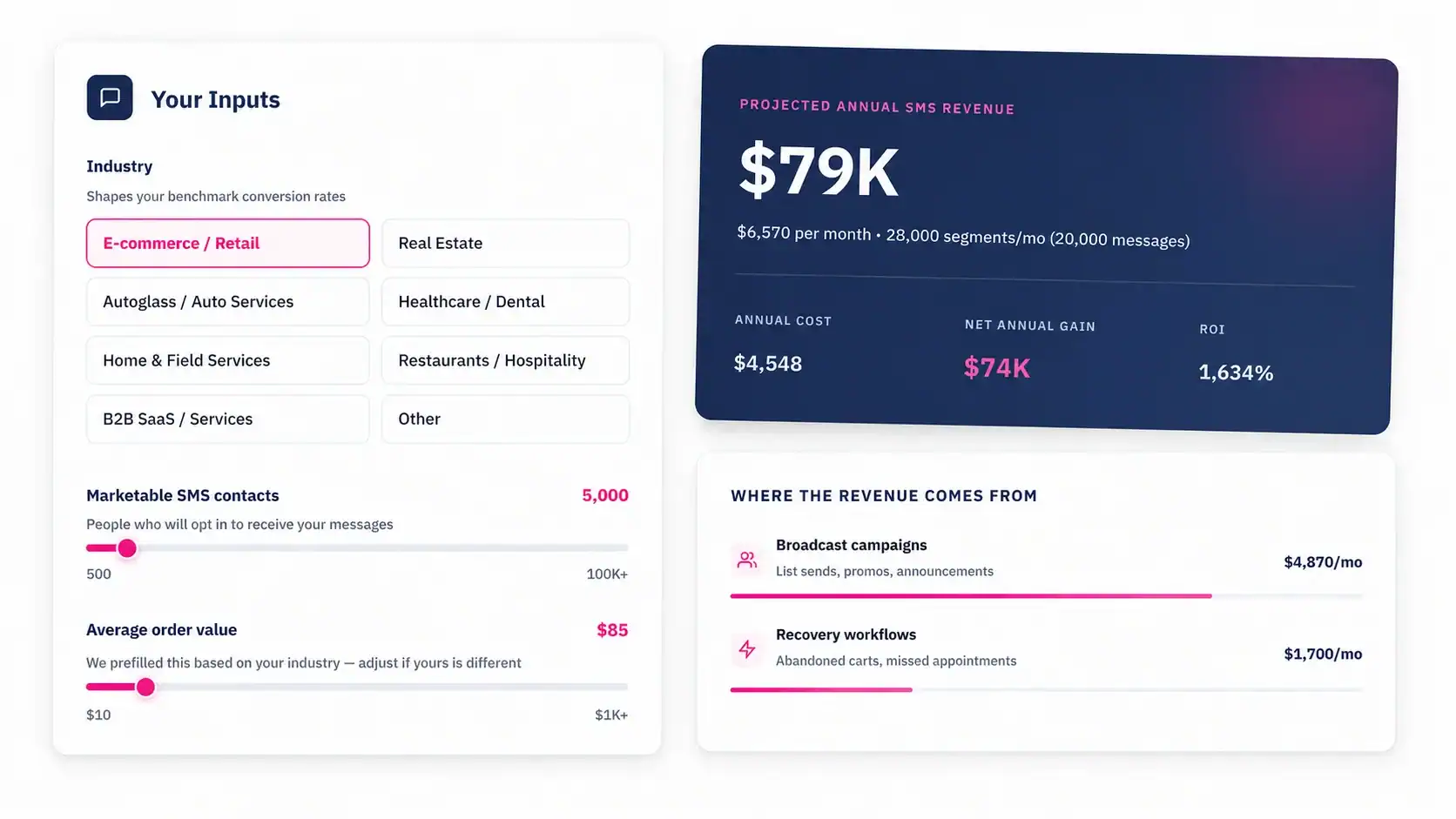
The Fix for HubSpot Text Messages Not Delivering
If your HubSpot text messages are not delivering, work through the checklist in order: confirm 10DLC registration is approved, verify contact opt-in status at the segment level, check phone number format in the Mobile Phone Number field, and review quiet hours settings. Most delivery failures come down to one of those four.
For teams where delivery failures keep recurring across campaigns, the issue is usually structural: either the opt-in collection process isn’t building a clean subscriber list, or the 10DLC campaign registration doesn’t accurately reflect how consent is collected.
MessageIQ connects to HubSpot natively, handles two-way SMS, and routes replies to a shared team inbox so nothing falls through. Plans start at $99/mo. If you’re spending more time troubleshooting SMS delivery than actually sending messages, it’s worth seeing how a properly configured integration runs inside your HubSpot.
Try MessageIQ free and send your first automated SMS from HubSpot today: messageiq.io/pricing